
A merge inflates your sales total when the lookup table has more than one row for the same key, such as two contacts for one customer. Expanding the merged column copies each matching order once per lookup row, each copy with the full amount. Check that the lookup key is unique before merging. Then filter the lookup to one row per key, or use Aggregate instead of Expand, and reconcile rows and dollars afterward.
The Example
Here’s a made-up example. A sheet named Orders holds six April orders totaling $4,200, one row per order, with headings in A1:D1. Type the dates as real dates and the amounts as plain numbers:
| order_id (A) | order_date (B) | customer_id (C) | order_amount (D) |
|---|---|---|---|
| ORD-3001 | 2026-04-03 | CUST-101 | 800 |
| ORD-3002 | 2026-04-07 | CUST-102 | 650 |
| ORD-3003 | 2026-04-12 | CUST-104 | 500 |
| ORD-3004 | 2026-04-18 | CUST-103 | 750 |
| ORD-3005 | 2026-04-23 | CUST-102 | 900 |
| ORD-3006 | 2026-04-28 | CUST-104 | 600 |
Two customers ordered twice. That’s ordinary history, not a duplicate problem. Many orders pointing to one customer is exactly what a lookup is for.
The goal is to add each customer’s account tier and contact email from a CRM export. Put it on a sheet named Customer_Lookup_Raw, with headings in A1:D1. It has seven rows for four customers, because it lists contacts, not customers:
| customer_id (A) | account_tier (B) | contact_role (C) | contact_email (D) |
|---|---|---|---|
| CUST-101 | Enterprise | Primary | ops@northstar-mfg.example |
| CUST-101 | Enterprise | Billing | ap@northstar-mfg.example |
| CUST-102 | Standard | Primary | buyer@ridgeway-supply.example |
| CUST-103 | Enterprise | Primary | hq@harbor-logistics.example |
| CUST-103 | Enterprise | Billing | finance@harbor-logistics.example |
| CUST-103 | Enterprise | Warehouse | dock@harbor-logistics.example |
| CUST-104 | Standard | Primary | orders@summit-dental.example |
The checks later in this article assume the Orders sheet is clean to begin with: every order_id present and listed once, a real date in every row, and a number of zero or more in every amount. They don’t test all of that, so look before you start.
To get both sheets into Power Query, click inside each range and choose Data > From Table/Range, with headers. Name the queries Orders and Customer_Lookup_Raw, and on the Table Design tab give the sheet tables the same names. In each query, use Home > Choose Columns and keep only the four columns above, so helper columns you add to the sheets later stay out of the merges. Then choose Close & Load To > Only Create Connection. From here on, leave these two queries alone. Every experiment below starts from them as a new query.
Why the Rows Multiply
In Power Query, select Orders and use Home > Merge Queries > Merge Queries as New, with Customer_Lookup_Raw as the second table and a Left Outer join on customer_id. That join keeps every row of the left table and brings in the matching rows from the right one. Right after the merge, you still have six rows. The new column holds a small table in each cell, containing every lookup row that matched.
Expanding that column turns each matching lookup row into its own output row. CUST-101’s single $800 order matches two contacts, so it becomes two rows. CUST-103’s $750 order matches three, so it becomes three. Name this query Merged_Expanded and load it to a sheet. Six orders become nine rows, and summing order_amount gives $6,500 instead of $4,200, a $2,300 overstatement (54.76%). Enterprise revenue alone goes from $1,550 to $3,850.
Expanding isn’t wrong in itself. If you want a list of every contact on every order, nine rows is the right answer. It’s wrong when the result has to stay at one row per order, so that its amounts can be added up.
- CUST-101: one $800 order × two contacts → $1,600 after expansion
- CUST-103: one $750 order × three contacts → $2,250 after expansion
- Other orders: $2,650 unchanged → expanded total $6,500
- Fix A: one Primary contact per customer; Fix B: aggregate the contact count
Two Fixes That Don’t Work
Try these only on throwaway queries. Right-click the query in the Queries pane and choose Reference, so the original stays intact.
Remove Duplicates on the merged table. Selecting every column and removing duplicates removes nothing, because each expanded row has a different contact role and email.
Remove Duplicates on customer_id in a reference of Orders (call it Orders_Dedup_Test). This deletes two real orders, one each for CUST-102 and CUST-104. Power Query doesn’t guarantee which row of a duplicate set it keeps, so the four orders left can total $2,700, $2,800, $2,950, or $3,050, depending on which ones survive. Every one of them is wrong.
Step 1: Test the Lookup Key Before You Merge
Power Query compares text case-sensitively, so to Power Query cust-101 , CUST-101 are different keys. Excel’s COUNTIF treats them as the same. To make the worksheet test agree with the merge, first standardize the key in the Orders and Customer_Lookup_Raw queries, before any merge: select customer_id and use Transform > Format > Trim, then UPPERCASE.
On the Customer_Lookup_Raw sheet, with the seven rows in A2:D8, put Key_Multiplicity in E1. Enter this in E2 and copy it down to E8:
=IF(OR(TRIM(A2)="", NOT(EXACT(A2, UPPER(TRIM(A2))))), "CHECK KEY", COUNTIF($A$2:$A$8, A2))
A key that’s blank, padded with spaces, or not uppercase shows CHECK KEY. Everything else shows how many times its key appears: 2, 2, 1, 3, 3, 3, 1.
Then a small control block. Put the labels Lookup_Audit_Check, Expected_Lookup_Rows, Populated_Lookup_Rows, Max_Key_Multiplicity, and Lookup_Uniqueness_Status in G1:G5, and Control_Value in H1. Type the number of rows you expect in H2, 7 here. Put =COUNTA(A2:A8) in H3, and in H4:
=IF(NOT(ISNUMBER(H2)), "CHECK KEYS", IF(OR(H2<=0, H2<>INT(H2), COUNTA(A2:A8)<>H2, COUNTIF(E2:E8, "CHECK KEY")>0, COUNT(E2:E8)<>COUNTA(A2:A8)), "CHECK KEYS", MAX(E2:E8)))
In H5:
=IF(NOT(ISNUMBER(H4)), "CHECK KEYS", IF(H4>1, "STOP MERGE: DUPLICATE LOOKUP KEYS", "SAFE 1:1 LOOKUP"))
H4 shows 3 and H5 says STOP MERGE: DUPLICATE LOOKUP KEYS. You can run the same test inside Power Query, too: group the lookup query by customer_id with a row count, then filter for counts above 1.

Step 2: Fix the Lookup, Not the Orders
Which fix you use depends on what the merge is for.
Fix A: one row per customer, chosen by a business rule. If you want one tier and one email per order, decide which contact counts. Here it’s the Primary contact. Right-click Customer_Lookup_Raw, choose Reference, and name the new query Customer_Lookup_Clean. Filter it on contact_role to keep only Primary, which leaves four rows, one per customer. Load it to a sheet named Customer_Lookup_Clean, rebuild the same checks for rows 2 to 5, and set H2 to 4. H4 should be 1 and H5 SAFE 1:1 LOOKUP. Then select Orders, use Merge Queries as New with Customer_Lookup_Clean, expand account_tier and contact_email, name the query Merged_Clean_FixA, and load it. It should have 6 rows and $4,200.
Use a filter, not Remove Duplicates, to choose the survivor. Remove Duplicates is safe only when the duplicate rows are identical in every column you plan to expand.
Fix B: Aggregate instead of Expand. If the question is a summary, such as how many contacts each order’s customer has, select Orders and use Merge Queries as New with the untouched seven-row Customer_Lookup_Raw, not the filtered copy. Then, in the merged column’s expand menu, choose Aggregate rather than Expand, and pick a count of contact_role. Microsoft’s aggregate steps show the menu. The functions on offer depend on the column, so check that you’re getting a count. Each order gets one number instead of extra rows: 2, 1, 1, 3, 1, 1. Name it Merged_Clean_FixB. It should keep 6 rows and $4,200. Aggregate is available in Excel’s Power Query Editor; Microsoft notes that Power Query Online currently offers only Expand.
Step 3: Reconcile Before You Use the Result
These formulas use Excel table references, because the queries load as Excel tables. Each check measures the loaded table itself, so a row added at the bottom isn’t missed.
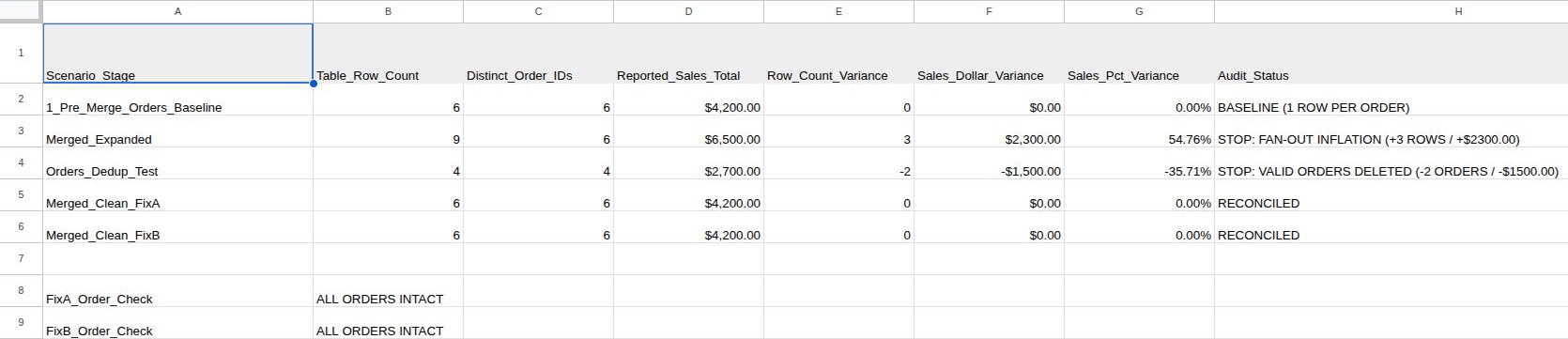
Compare the tables. On a Merge_Audit sheet, put Scenario_Stage, Table_Row_Count, Distinct_Order_IDs, and Reported_Sales_Total in A1:D1, followed by the variance and status headings in E1:H1. Give each table a row: 1_Pre_Merge_Orders_Baseline in A2 for Orders, then Merged_Expanded, Orders_Dedup_Test, Merged_Clean_FixA, and Merged_Clean_FixB in A3:A6. In B:D, measure each one with its own table name, for example in row 5 for Fix A:
=ROWS(Merged_Clean_FixA[order_id])
=COUNTA(UNIQUE(Merged_Clean_FixA[order_id]))
=SUM(Merged_Clean_FixA[order_amount])
UNIQUE needs Excel for Microsoft 365 or Excel 2021 or later. The baseline row measures Orders the same way. The variance and status formulas for columns E to H are in the reference section. In the example, they show:
| Table | Rows | Distinct orders | Sales | Status |
|---|---|---|---|---|
| Orders (baseline) | 6 | 6 | $4,200 | BASELINE (1 ROW PER ORDER) |
| Merge + Expand | 9 | 6 | $6,500 | STOP: FAN-OUT INFLATION (+3 ROWS / +$2300.00) |
| Orders deduplicated on customer_id | 4 | 4 | $2,700* | STOP: VALID ORDERS DELETED |
| Fix A | 6 | 6 | $4,200 | RECONCILED |
| Fix B | 6 | 6 | $4,200 | RECONCILED |
*Or $2,800, $2,950, or $3,050, depending on which rows survive.
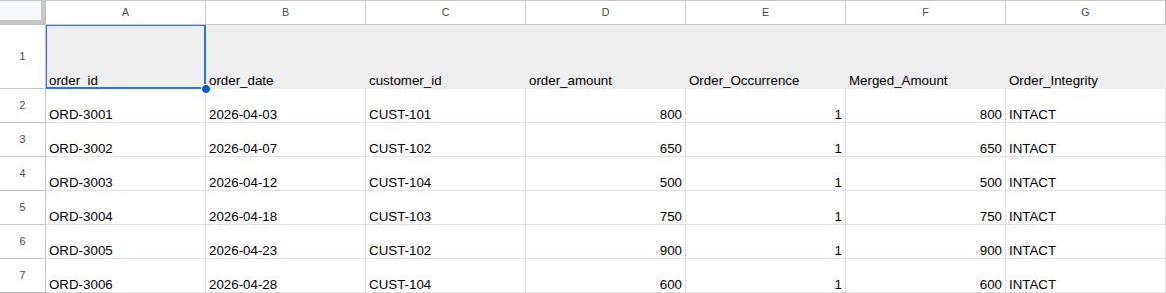
Check each order. Matching totals can still hide a problem. Two orders could be dropped while two others with the same total are doubled, or two amounts could change by offsetting amounts. So check every order. On the Orders sheet, put Order_Occurrence, Merged_Amount, and Order_Integrity in E1:G1, then enter these three formulas in row 2:
- E2:
=COUNTIF(Merged_Clean_FixA[order_id], A2) - F2:
=SUMIFS(Merged_Clean_FixA[order_amount], Merged_Clean_FixA[order_id], A2) - G2:
=IF(OR(E2<>1, ROUND(F2-D2, 2)<>0), "STOP: ORDER CORRUPTED", "INTACT")
Copy E2:G2 down through E7:G7 so every order has all three. Then, on Merge_Audit, put the label FixA_Order_Check in A8 and this summary in B8:
=IF(AND(ROWS(Merged_Clean_FixA[order_id])=ROWS(Orders[order_id]), COUNTIF(Orders!G2:G7, "INTACT")=ROWS(Orders[order_id])), "ALL ORDERS INTACT", "STOP: ORDER SET MISMATCH")
For Fix B, put the same three headings in H1:J1 and use H2 =COUNTIF(Merged_Clean_FixB[order_id], A2), I2 =SUMIFS(Merged_Clean_FixB[order_amount], Merged_Clean_FixB[order_id], A2), and J2 =IF(OR(H2<>1, ROUND(I2-D2, 2)<>0), "STOP: ORDER CORRUPTED", "INTACT"). Copy them down through row 7. Put FixB_Order_Check in A9 and, in B9, the B8 formula with Merged_Clean_FixB in place of Merged_Clean_FixA and Orders!J2:J7 in place of Orders!G2:G7. Type these rather than copying sideways, so A2 and D2 stay put.
Together these confirm that each original order appears exactly once, with its amount matching to the cent (the check rounds to two decimals), and that the merged table has no extra rows. That holds for six orders that meet the conditions listed with the example. They don’t confirm that each order got the right tier or email. Spot-check those against the source.
Frequently Asked Questions
The Merge dialog said every row matched. Why did I still get extra rows?
The estimate at the bottom of the Merge dialog reports how many of your orders found a match. It doesn’t warn you that some found several. Check the lookup key before you expand.
What if I really need every contact alongside the orders?
Keep them as separate tables. Orders stays one row per order, contacts one row per contact, and a customer table with one row per customer connects them. A dashboard or the Excel Data Model can then relate them without flattening everything into one sheet.
What to Do Next
Inflation is a grain problem, so start with What Does One Row Represent in Your Sales Spreadsheet?. If repeated order IDs show up within a single export, Duplicate Sales Rows or Legitimate Order Lines? covers telling them apart. For the wider routine of row counts and control totals, see The Small Business Data Audit Checklist.
Copy-Paste Formula Reference
Merge_Audit columns E to H. Row 2 is the baseline. Enter these in row 2 and copy them down through row 6.
E2 (Row_Count_Variance):
=IF(OR(NOT(ISNUMBER(B2)), NOT(ISNUMBER(C2)), NOT(ISNUMBER(D2)), NOT(ISNUMBER($B$2)), NOT(ISNUMBER($C$2)), NOT(ISNUMBER($D$2))), "CHECK INPUTS", IF(OR(B2<=0, C2<=0, D2<0, $B$2<=0, $C$2<=0, $D$2<=0, B2<>INT(B2), C2<>INT(C2), $B$2<>INT($B$2), $C$2<>INT($C$2), B2<C2, $B$2<$C$2), "CHECK INPUTS", B2 - $B$2))
F2 (Sales_Dollar_Variance): =IF(E2="CHECK INPUTS", "CHECK INPUTS", ROUND(D2 - $D$2, 2))
G2 (Sales_Pct_Variance, formatted as a percentage): =IF(E2="CHECK INPUTS", "CHECK INPUTS", (D2 - $D$2) / $D$2)
H2 (Audit_Status). Name the baseline row 1_Pre_Merge_Orders_Baseline in A2:
=IF(E2="CHECK INPUTS", "CHECK INPUTS", IF(A2="1_Pre_Merge_Orders_Baseline", IF(B2=C2, "BASELINE (1 ROW PER ORDER)", "STOP: BASELINE GRAIN MISMATCH"), IF(OR(B2>$B$2, ROUND(D2-$D$2,2)>0), "STOP: FAN-OUT INFLATION (+" & (B2-$B$2) & " ROWS / +" & TEXT(D2-$D$2, "$0.00") & ")", IF(OR(C2<$C$2, B2<$B$2, ROUND(D2-$D$2,2)<0), "STOP: VALID ORDERS DELETED (" & (C2-$C$2) & " ORDERS / -" & TEXT($D$2-D2, "$0.00") & ")", "RECONCILED"))))
Customer_Lookup_Clean. Use the Step 1 formulas with every A2:A8 or E2:E8 range changed to rows 2 to 5, and H2 set to 4.