
Sharing a report link does not hand over its refresh. Before the original builder leaves or loses access, transfer ownership of the source spreadsheet and audit its protected-range permissions, transfer ownership of the report and its reusable data sources, and switch the data source credential owner to the successor. Then remove the outgoing owner’s spreadsheet access and run a live refresh test.
Data Studio was called Looker Studio until April 2026. My preferred tool is Google Sheets because a spreadsheet should be shareable, to collaborate and communicate. But a report keeps refreshing through accounts, not links. I’ve seen business numbers fall out of sync across systems plenty of times. The check at the end of this guide confirms the numbers still match after the builder changes. The core walkthrough uses no-cost Google Sheets and Data Studio.
The Example: One Sheet, Two People
In this made-up example, Alex built a monthly sales sheet and a Data Studio report on it. Alex is changing roles; Blair takes over. The tab is named Monthly_Sales, and each row is one completed customer invoice. The headings are in A1:E1. Alex entered rows 2 to 7. Blair will add row 8 during the handoff test, so leave it empty for now. The Row column below is a label, not a column to paste.
| Row | invoice_id | customer_name | invoice_date | service_line | net_sales_usd |
|---|---|---|---|---|---|
| 2 | INV-6301 | Cedar Point Logistics | 2026-04-03 | Retainer | $2,200.00 |
| 3 | INV-6302 | Meridian Dental Group | 2026-04-08 | Project | $1,850.00 |
| 4 | INV-6303 | Harborview Property Co | 2026-04-14 | Support | $1,450.00 |
| 5 | INV-6304 | Summit Industrial Supply | 2026-04-19 | Retainer | $2,400.00 |
| 6 | INV-6305 | Pinecrest Equipment LLC | 2026-04-24 | Project | $1,900.00 |
| 7 | INV-6306 | Bayside Medical Billing | 2026-04-27 | Support | $1,600.00 |
| 8 | INV-6307 | Northwind Field Services | 2026-04-30 | Retainer | $2,100.00 |
Enter dates as real dates, for example =DATE(2026,4,3), and net sales as plain numbers with currency formatting. Formatting alone doesn’t convert text.
Before the handoff, the sheet holds six invoices worth $11,400.00, and the latest is dated 2026-04-27. After Blair adds row 8, it holds seven invoices worth $13,500.00, and the latest is dated 2026-04-30.
The report’s data source reads Monthly_Sales with the range A1:E100. New rows inside that range reach the report, and the check block in columns H to J stays out of it. A range that stops at the last filled row misses new rows, as covered in why a Data Studio report shows old data.
Why Sharing the Link Is Not a Handoff
A working report depends on three kinds of ownership. Sharing the report as “Can edit” changes none of them.
| What Alex still owns | What it controls | What breaks if it stays with Alex |
|---|---|---|
| The spreadsheet file | The file and its protected ranges | Protected ranges that list only Alex can block teammates from cells they update |
| The report and reusable data source | The Data Studio assets themselves | If Alex’s Google account is deleted, no-cost Data Studio assets are permanently deleted after 20 days |
| The data credentials | Whose account the data source uses to read the sheet | Charts that use Alex’s credentials stop returning data once Alex loses access to the sheet |
If Alex still has access, the report keeps working, so the handoff can look finished when it isn’t.
The Five-Step Handoff
Step 1: Transfer the spreadsheet and audit its protected ranges
Transfer the file, not just the folder. As Google’s help on changing a file’s owner puts it: “When you make someone else the owner of a folder, you still own the files inside.”
Signed in as Alex, open Monthly_Sales, click Share, and choose Transfer ownership next to Blair. Inside one Google Workspace organization, Blair doesn’t need to accept. Between personal Google accounts, Blair must accept the request first. Either way, confirm Blair shows as Owner before you continue. Another option is moving the file into a Workspace shared drive, where the organization owns it.
Then sign in as Blair, since an owner can’t remove their own permission. Open Data > Protect sheets and ranges. Remove Alex from each protected range’s editor list and add the teammates who should edit it.
Step 2: Make Blair the owner of the report and data source
Edit access is not ownership. Per Google’s transfer guide, no-cost reports and reusable data sources are permanently deleted 20 days after their owner’s account is deleted. Data Studio Pro content belongs to the organization instead.
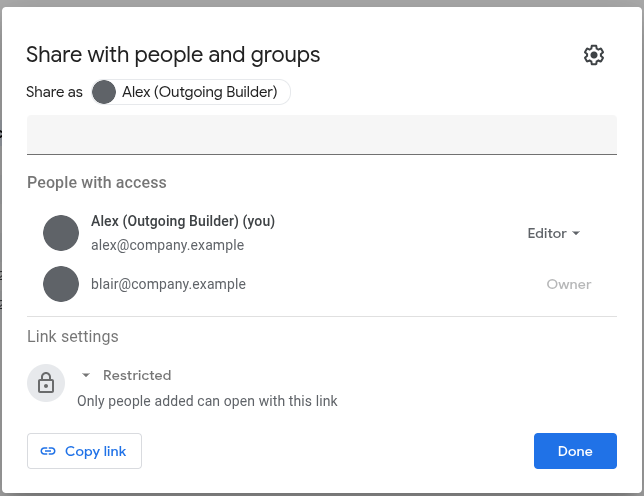
Signed in as Alex, open the report and click Share. Open the role drop-down next to Blair, choose Make owner, and click Yes. Then open each reusable data source directly from Data Studio’s Data sources list and do the same. Reusable data sources are shared separately, and you can’t share one while editing it inside a report. Google also says only a reusable source’s owner can edit its connection.
Both accounts must share a Workspace domain, or both be standard Google accounts. Uploaded-CSV data sources can’t be transferred, so Blair recreates them.
In the test, Blair then showed as Owner and Alex as Editor, but the data source still listed Alex as the credential owner.
Step 3: Switch the data credentials to Blair
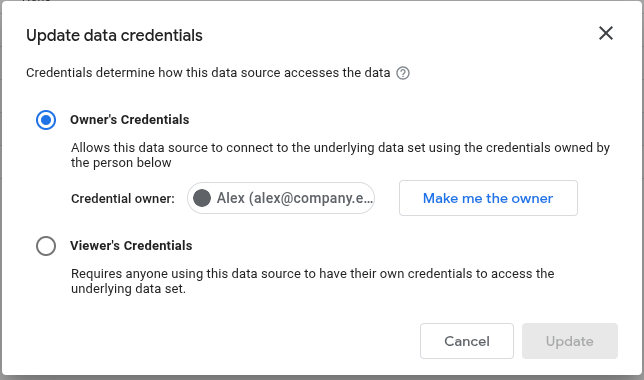
Google says it plainly: “When you transfer ownership of a data source, the data credentials remain intact.” With Owner’s Credentials, the data source still reads the sheet as Alex.
Signed in as Blair, open the data source. For an embedded source, go to Resource > Manage added data sources > Edit. Click Data credentials at the top, then click Make me the owner. If Data Studio asks Blair to authorize Google Sheets, allow it, then reconnect the data source when prompted.
In the test, refreshing the report before Blair’s reconnection was complete gave every chart a “Data Set Configuration Error.” Reconnecting alone is not a substitute: Google says it makes you the credentials owner only “If there are changes to the fields or the underlying dataset.”
If your team uses Power BI. This note comes from Microsoft’s documentation, not from testing for this guide. Shared Power BI workspaces need paid licensing, and “only a semantic model owner can configure scheduled refresh, credentials, and automatic aggregations” (semantic model permissions). The successor takes over the semantic model in its settings, re-enters the data source credentials or checks the gateway mapping, and confirms scheduled refresh is on. Power BI turns it off after four failures in a row or an unrecoverable credential error.
Step 4: Remove Alex from the spreadsheet before you test
The source Blair claimed now runs on Blair’s credentials. But a report can contain a second data source, or a blended chart, that still reads Monthly_Sales as Alex. Google notes that “Data sources that use your credentials continue to retrieve data even if you can no longer edit the data source.” While Alex can open the sheet, that source keeps working and hides the gap.
So remove Alex first. Signed in as Blair, open Share on Monthly_Sales, remove Alex, and save. Alex should then see “You need access” on the sheet link. Alex can also revoke their own Data Studio credentials under Data Sources > More > Revoke data source. Do that in addition to removing sheet access, not instead of it.
This test covers only sources that connect to Monthly_Sales directly. If the sheet pulls data from other files with IMPORTRANGE, that link stays active until the person who granted it is removed from the source file. For each source file, transfer or re-share it, remove Alex, then change a value there and confirm it reaches the report.
Step 5: Add a test row and refresh
Signed in as Blair, add row 8: INV-6307, Northwind Field Services, 2026-04-30, Retainer, $2,100.00. In the report, click More options > Refresh data. Viewers see this only if the owner turned on viewer refresh, and you can refresh once per minute.
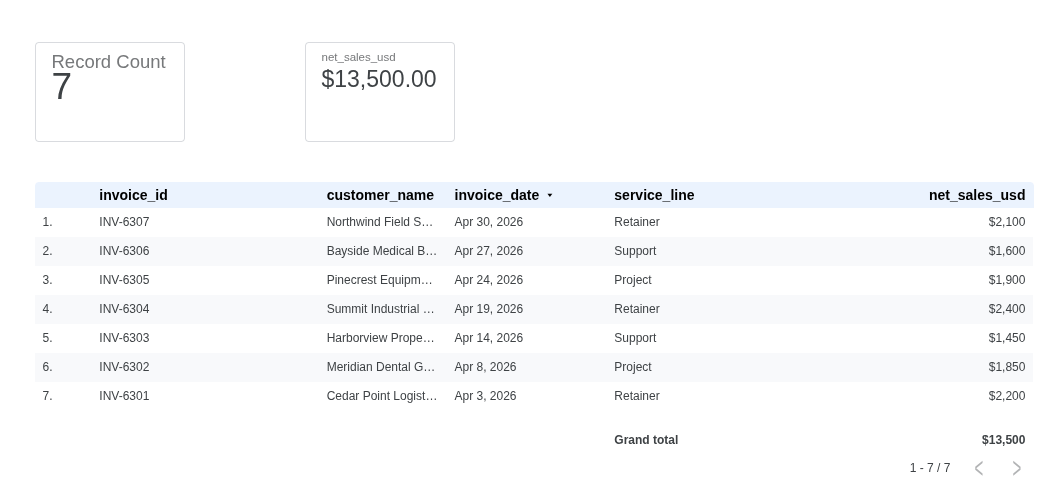
The report should now show 7 records, $13,500.00, and a latest date of 2026-04-30. In the test, the refreshed report listed INV-6307 at $2,100 while Alex had no access to the sheet.
Record the Result in a Check Block
Put the check block in H1:J9, outside the report’s range. Column I holds what the sheet expects; replace I2 with your successor’s real email. Leave J2:J8 empty until each check is done. The J column below describes what to enter, not the cell contents.
| Row | H: Check | I: Expected | J: Observed |
|---|---|---|---|
| 2 | Credential owner | blair@company.example | Email shown under Data credentials |
| 3 | Sheet owner and ranges | TRANSFERRED | Type TRANSFERRED after Step 1 |
| 4 | Report and source owner | TRANSFERRED | Type TRANSFERRED after Step 2 |
| 5 | Alex removed from sheet | YES | Type YES after Step 4 |
| 6 | Row count | =COUNTA(A2:A100) |
Record count after Step 5 |
| 7 | Net sales | =SUM(E2:E100) |
Net sales total after Step 5 |
| 8 | Latest invoice date | =MAX(C2:C100) |
Latest date after Step 5 |
| 9 | Status | Formula below |
Type the uppercase words exactly; the check is case-sensitive. Format I8 and J8 as dates, and enter J8 as a real date, not as text with a leading apostrophe. Then enter this in J9:
=IFERROR(IF(AND(EXACT(J2,I2),EXACT(J3,I3),EXACT(J4,I4),EXACT(J5,I5),J6=I6,ROUND(J7-I7,2)=0,J8=I8),"HANDOFF VERIFIED","STOP: CHECK THE GAP"),"STOP: CHECK THE GAP")
With the example, I6:I8 show 7, $13,500.00, and 2026-04-30. Sign off only when J9 reads "HANDOFF VERIFIED".
Know the limits. The block compares what Blair typed against the sheet. It doesn’t check source rows for bad entries or read Data Studio’s settings. A six-row sheet and a six-row report would also match, which is why Step 5 adds a new row first.
If J9 says stop, the gap points to the cause:
| What you see | Likely cause | Fix |
|---|---|---|
| 6 records, $11,400.00, latest 2026-04-27 | The range stops at row 7, or the data hasn’t refreshed | Widen the range to A1:E100 and refresh again |
| Every chart shows "Data Set Configuration Error" | Blair’s credentials or reconnection are not complete | Repeat Step 3 as Blair |
| Some charts fail after Alex is removed | A second data source still uses Alex’s credentials | Run Make me the owner on that source too |
| Data credentials still show Alex | Step 3 was skipped | Run Step 3, then retest |
| A teammate can’t edit locked cells | A protected range still lists only Alex | Blair edits the range (Step 1) |
Frequently Asked Questions
Can we avoid personal handoffs next time?
Yes. If your Workspace plan includes shared drives, keep the spreadsheet in one, so the organization owns the file. Then own the report, its data sources, and the Owner’s Credentials under a managed team account, such as reporting-ops@company.example. Data Studio’s service account credentials don’t help here, because they apply to BigQuery, not to Google Sheets.
What if the builder’s account was already deleted?
Act within 20 days. A Workspace admin can restore the user, then delete the account again, and under Data in other apps transfer the Data Studio assets to the successor, including assets not shared with anyone. After 20 days, the report and reusable data sources no longer exist. The successor rebuilds them against the surviving sheet and claims Owner’s Credentials.
What to Do Next
Put these five steps on your offboarding checklist and run them before the account is turned off. Getting your team to use your reports starts with a named owner for each one. If the report limits who sees which rows, recheck that setup too, because the credential owner just changed and dashboard filters are not row-level access controls.