
No. In Data Studio (formerly Looker Studio), a drop-down control or a saved report filter changes what the report shows. It does not control who can see the data. A viewer can clear a control, and anyone who can open the underlying Google Sheet sees every row. To keep each rep’s numbers private, use Filter by email with Owner’s credentials, or give each rep a separate file.
Google’s own documentation now calls the product Data Studio. My preferred tool is Google Sheets because a spreadsheet should be shareable, whether to collaborate or to communicate. But sharing a report to communicate results is not the same as sharing the data behind it. Both fixes below cost $0 in add-on tools if you already use Google Workspace.
The Example: One Sheet, Three Reps
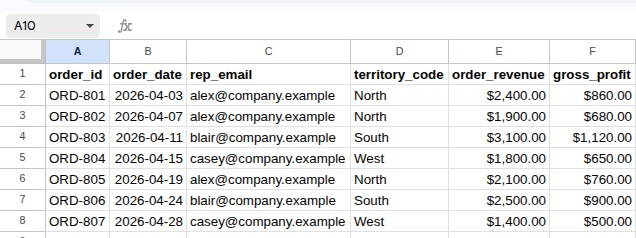
Here is a made-up April sales sheet with seven orders. Each row is one completed customer order, and the tab is named Territory_Sales:
| order_id | order_date | rep_email | territory_code | order_revenue | gross_profit |
|---|---|---|---|---|---|
| ORD-801 | 2026-04-03 | alex@company.example | North | $2,400.00 | $860.00 |
| ORD-802 | 2026-04-07 | alex@company.example | North | $1,900.00 | $680.00 |
| ORD-803 | 2026-04-11 | blair@company.example | South | $3,100.00 | $1,120.00 |
| ORD-804 | 2026-04-15 | casey@company.example | West | $1,800.00 | $650.00 |
| ORD-805 | 2026-04-19 | alex@company.example | North | $2,100.00 | $760.00 |
| ORD-806 | 2026-04-24 | blair@company.example | South | $2,500.00 | $900.00 |
| ORD-807 | 2026-04-28 | casey@company.example | West | $1,400.00 | $500.00 |
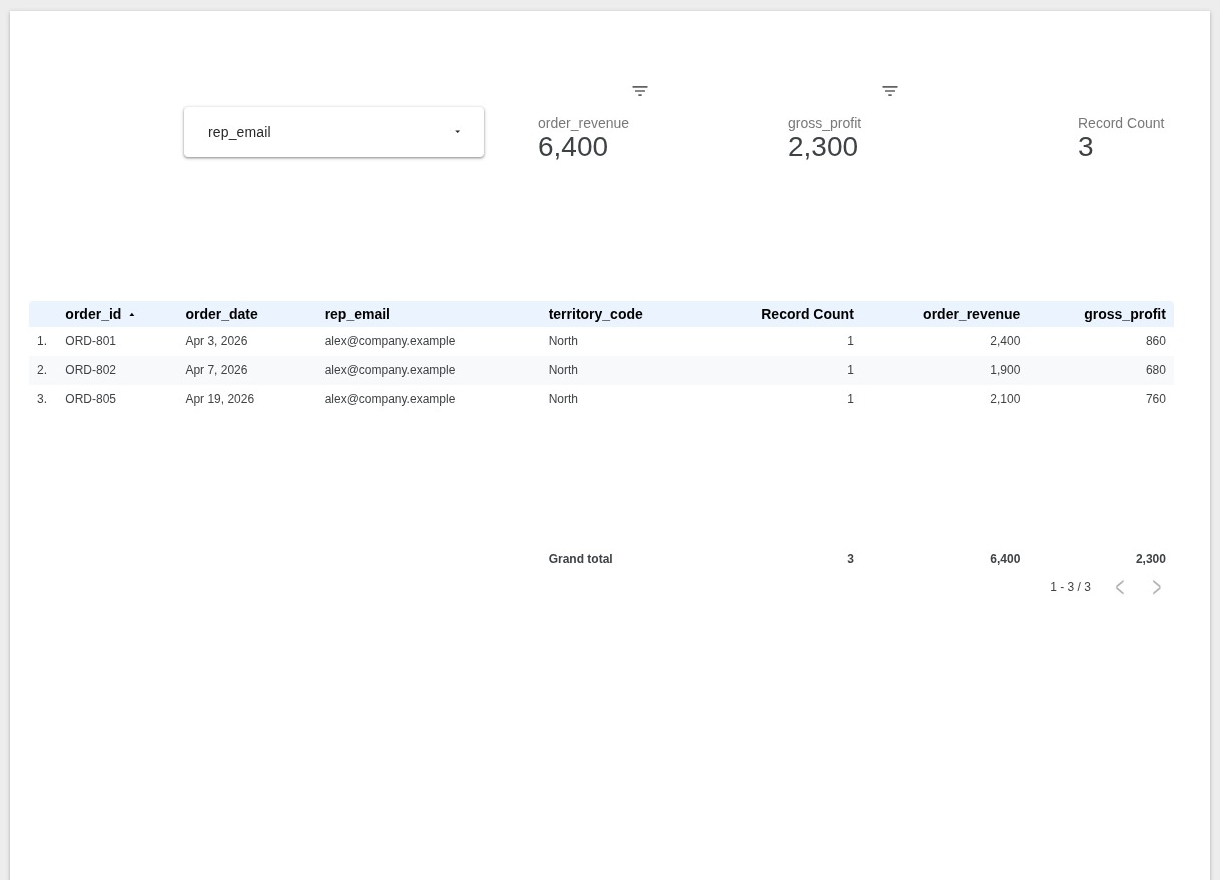
Alex should see three orders worth $6,400.00 in revenue and $2,300.00 in gross profit. Alex should not see the other four orders, which are worth $8,800.00 in revenue and $3,170.00 in gross profit.
Why the Usual Filters Leak
A drop-down control is for exploring
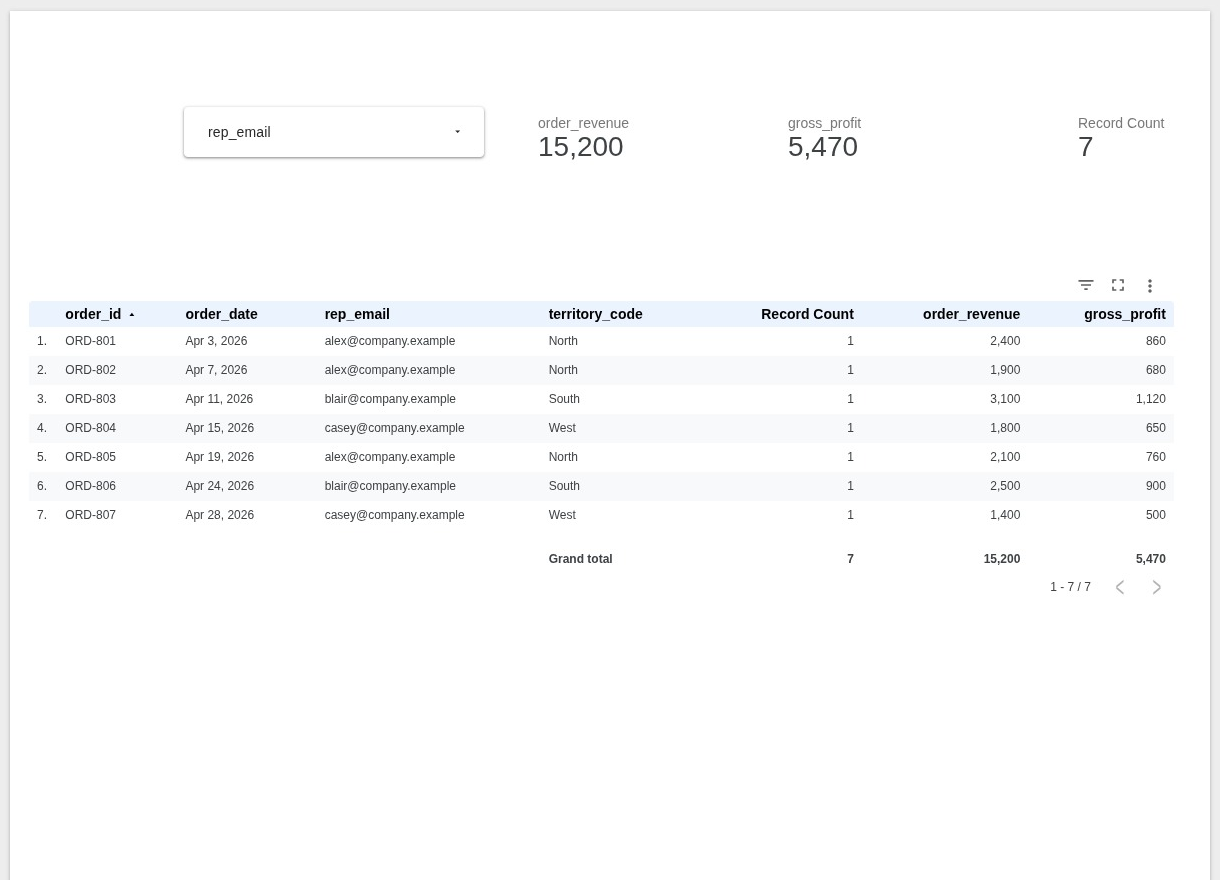
Say you add a drop-down control on rep_email, set it to Alex, and send Alex the report link. Alex sees three rows. But controls are built for viewers to change. If Alex clears the selection or picks another rep, the report shows other reps’ orders. With nothing selected, it shows all seven orders and $15,200.00 in revenue.
A saved report filter protects the report, not the sheet
A filter property set in edit mode (Resource > Manage filters) is safer on screen. Viewers can’t change or remove it in View mode.
The leak is the sheet underneath. Many teams build the report from a sheet everyone already uses. If Alex can open that sheet, Alex can read every row, no matter what the report shows. Anyone who can edit the report can also remove the filter.
Hiding a column does not protect it
Removing gross_profit from a chart does not remove it from the data source. Anyone who can edit the report can add it back. If a column is confidential, delete it from the sheet or range the report connects to.
Option 1: Filter by Email With Owner’s Credentials
Use this when every rep has a Google account and you want one report for the whole team.
- Lock down the sheet. Open Share on the Google Sheet and remove every rep. Check all the ways access can arrive: named people, groups, "Anyone with the link," your whole domain, and the folder or shared drive the file sits in.
- Connect the sheet. In Data Studio, add the Google Sheets connector, pick the
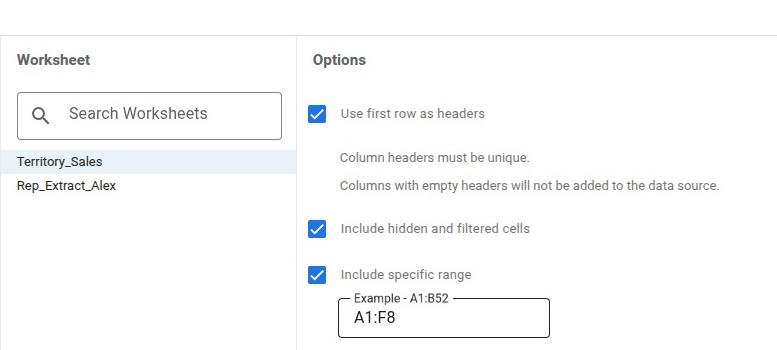
Territory_Salestab, and keep "Use first row as headers" checked. If the tab holds other content, check "Include specific range" and enter the data range, which isA1:F8in this example. A fixed range doesn’t grow, so widen it when you add rows, or keep the data on a tab of its own. - Switch to Owner’s credentials. Go to Resource > Manage added data sources > Edit, and set Data credentials to Owner’s credentials. The report now reads the sheet as you, so reps never need access to the file.
- Turn on Filter by email. In the same data source editor, click Filter by email, check "Filter data by viewer email," and choose
rep_email. Then click All Fields to return to the field list. - Share the report as view-only. Give edit access to the report and the data source only to people you trust with all the data.
Here is what people see after that. The first time a rep opens the report, Data Studio asks for consent to use their email address. If they decline, the charts show a consent message instead of data. That message is not the same as a result of zero rows. Once Alex allows it, Alex sees only the three North orders. Blair sees only Blair’s two orders. You, the owner, will see "No data" unless your own email is in the column. That is expected, so don’t add yourself just to make the charts fill in.
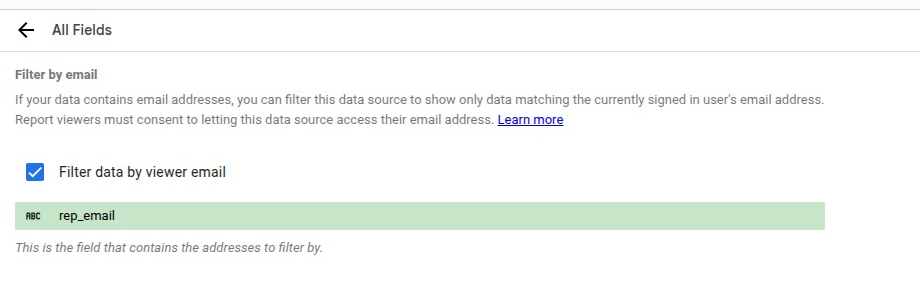
Two details break this setup. First, Filter by email matches the exact email. If the sheet says Alex@company.example but the account signs in as alex@company.example, Alex sees blank charts. Copy each address exactly as the account uses it. Second, each row here belongs to one person. If a row needs several viewers, follow Google’s multiple-email setup instead.
Some Google Workspace admins block Owner’s credentials. If yours does, use Option 2.
Option 2: A Separate File for Each Rep
Use this when reps need a spreadsheet rather than a dashboard, or when you only have a few reps.
- Copy values only. Copy the header row and Alex’s three rows. Paste them into a new Google Sheet with Paste special > Values only, so no formula points back to the master file.
- Check every row before you share. Compare the new file with the master, row by row. It should hold exactly ORD-801, ORD-802, and ORD-805, and every value in those rows should match the master. Then confirm there are no other filled rows, no extra tabs, and no columns Alex shouldn’t see. Totals of $6,400.00 in revenue and $2,300.00 in gross profit are a useful cross-check, but matching totals can hide a wrong order.
- Share only that file, only with Alex. Set General access to Restricted and add Alex as a Viewer. Make sure nobody else is listed, and that the file doesn’t sit in a folder or shared drive other people can open. The master stays closed to every rep, just as in Option 1. If Alex also gets a report, connect it to this file, not the master.
- Avoid live links into files reps can edit. It is tempting to feed each rep’s file with IMPORTRANGE. But once the master allows that connection, anyone who can edit the destination file can pull any range from the master. Paste values, or make sure the entire source file holds only that rep’s permitted rows and columns.
The tradeoff is upkeep. You refresh each file every period. For a team of three to five reps, that is often a fair price for a file boundary you can see.
Which Option Fits Your Team
| Question | Option 1: Filter by email | Option 2: Separate files |
|---|---|---|
| What reps get | One shared report, filtered to their own rows | Their own sheet, plus a report if you build one |
| Setup effort | One-time setup in the data source | One new file per rep |
| Ongoing work | Add rows to the master inside the connected range; the report picks them up after the data refreshes | Refresh every rep’s file each period |
| Main risk | An email in the sheet doesn’t match the account exactly, or someone reshares the master | A wrong row gets pasted into a rep’s file |
| What can block it | A Workspace admin policy against Owner’s credentials | Organization sharing policies, such as limits on sharing outside your domain; it also gets tedious past a handful of reps |
If you’re unsure, start with Option 1. It keeps one source of truth, and the test below tells you within minutes whether it works.
Test It the Way a Rep Would
Don’t trust the setup until you have opened it as someone else. Do this on a copy of the sheet and report, using the made-up data:
- Map two real accounts. In the copied sheet, replace Alex’s three email cells with the exact address of a Google account you control that isn’t the owner. Call it Account A. Replace Blair’s two cells with a second account, Account B. Keep both accounts off the copied sheet’s sharing list. Connect the copied report to this copied sheet, and use Account A as Alex’s recipient when preparing the separate test file.
- Set up the report. Add a table with
order_id, and showorder_revenueandgross_profitas sums. If the report has a date range, make sure it covers April 2026. Remove any Alex-only filter left over from earlier. - Open each account in its own browser profile, then work through the checks below.
| Check | What you should see |
|---|---|
| Open the copied sheet’s link as A, then as B | "You need access" both times |
| Open the report as A and allow consent | Exactly ORD-801, ORD-802, and ORD-805, with $6,400.00 revenue and $2,300.00 gross profit |
| As A, clear or change every control on the page | No orders outside A’s three; controls may show fewer authorized orders |
| Open the report as B and allow consent | Exactly ORD-803 and ORD-806, with $5,600.00 revenue and $2,020.00 gross profit |
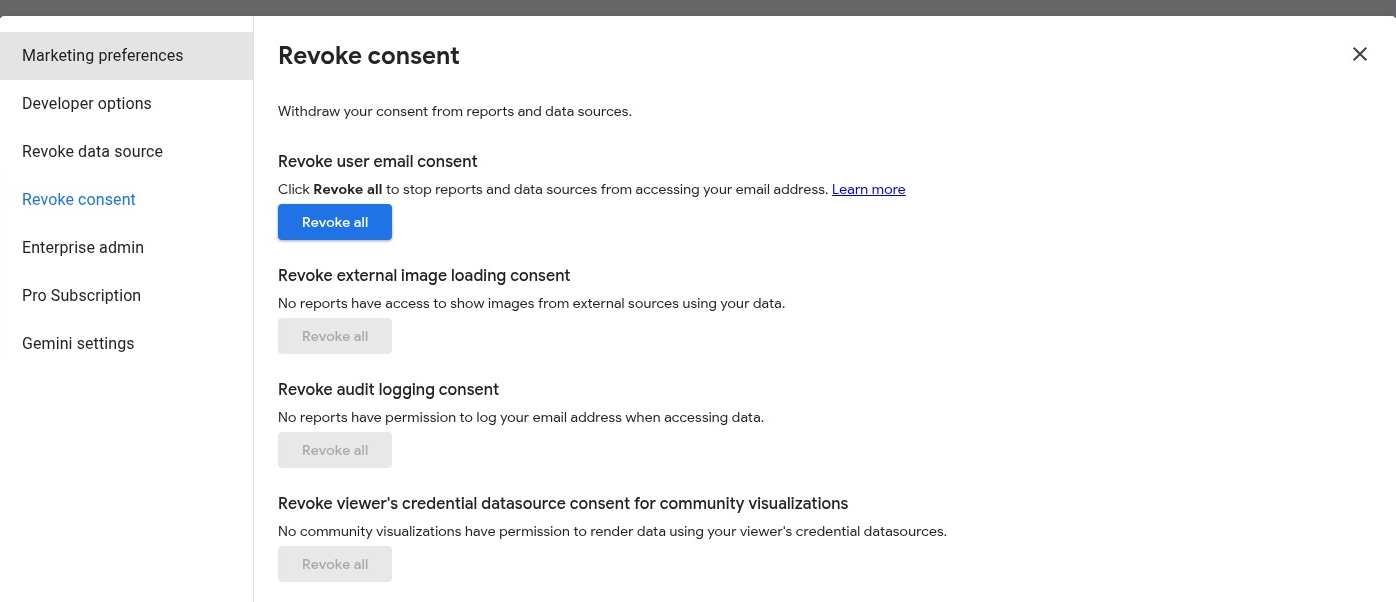
| As A, decline consent, or revoke it under User settings > Revoke consent > Revoke all | A consent message and no data |
| Option 2: open Alex’s delivered file as A | View only, with exactly the three North orders |
| Option 2: open Alex’s delivered file as B | "You need access" |
After the consent check, allow consent again before any other check. For positive data checks, inspect the order IDs themselves, not just a total. Restore the unfiltered April view before comparing full totals. For denial and consent checks, confirm the stated message. If you connected a report to the Option 2 file, open it as A too and confirm the same three orders.
Run the test again whenever you change sharing, add a rep, or rebuild the data source.
Troubleshooting
| Symptom | Likely cause | Fix |
|---|---|---|
| A rep sees blank charts | Consent was declined, or the email in the sheet differs from the account’s email | Ask the rep to reopen and allow consent, then match the sheet’s email exactly to the account |
| You see "No data" as the owner | Your email isn’t in rep_email |
Nothing to fix; test with a mapped account instead |
| Other reps’ rows appear in the report | Filter by email is off, or a chart uses a second data source without the filter (Owner’s credentials alone don’t filter rows) | Check Filter by email on every data source the page uses; use Owner’s credentials for this recipe |
| A rep can read other reps’ rows by opening the sheet | The master is still shared through a person, group, link, domain, folder, or shared drive | Remove that access; a report filter can’t protect the file itself |
Can I share just one tab of a Google Sheet?
No. Sharing in Google Drive applies to the whole file. If a rep can open the file, they can open every tab in it. That is why Option 2 uses a separate file.
Is a saved report filter ever enough?
It keeps the report display fixed for viewers, which is fine for convenience. It is not access control, because it does nothing about who can open the sheet or edit the report.
What to Do Next
Before you share any report link, run the small business data audit checklist to check row grain, totals, and permissions. Write down who may see what in a small spreadsheet data dictionary. And before pasting margin rows into a prompt, check whether it is safe to upload business data to AI tools.