
A spreadsheet data dictionary is a tab inside your workbook, often named _Data_Dictionary, that says what every column means. For each column, it records the name, a display label, the data type, a plain-English definition, the expected format, the allowed values, a rule for blanks, the source, and who owns it. With it in the workbook, people read the columns the same way, dropdown lists can draw their choices from it, and a blank cell stops looking like a mistake.
You don’t need an enterprise data catalog for this. One extra tab is a reasonable start for a sheet that several people share.
What Goes Wrong Without One
A header like “net_sales” or “date” hides decisions. Here are four ways that costs a small business, using a made-up order list. It has eight lines across six orders and $3,335.00 in net sales. The full list is under “The Example Data” below.
- Tax confusion. An outside accountant assumes net_sales includes an 8% tax and divides by 1.08. Their number is $3,087.96, which is $247.04 (7.4%) below the real $3,335.00. The meeting to explain it was avoidable if the definition had said the field excludes sales tax and freight.
- Dates read two ways. The text 04/05/2026 is April 5 in the US and May 4 in much of the rest of the world. In this example, the two readings are 29 days apart and land in different months, so April sales shrink and May sales grow. Reformatting a date that was already misread doesn’t repair it.
- Categories multiply. Three reps type “Equipment,” “Equip,” and “EQ” for the same thing. A pivot table splits $2,600.00 of equipment sales into three rows.
- A blank gets deleted. One order has no customer ID because it was a walk-in checkout. An analyst assumes the row is broken and deletes it, and the weekly total falls $85.00 (2.55%).
The Nine Columns
Your dictionary has one row per column of data and nine fields:
| Field | What it holds | Example for net_sales |
|---|---|---|
| Field_Name | The exact header in your data table | net_sales |
| Display_Label | The name used in reports | Net Sales |
| Data_Type | Text, Integer, Date, Currency | Currency |
| Business_Definition | What the field means, in plain English | Item price minus line discounts; excludes sales tax and freight |
| Units_or_Format | Currency, date format, unit | USD, $ 0.00 |
| Allowed_Values | Valid choices or limits | 0.00 or more |
| Null_Rule | Whether blank is allowed, and what it means | Required; 0.00 allowed for warranty replacements |
| Source_System | Where the data comes from | Square POS export (a synthetic example) |
| Field_Owner | The role that approves changes | Finance Lead |
These nine fields are a suggested starting template, not a standard. The USGS data dictionary guidance says the contents vary by project, and ISO/IEC 11179 is a framework for metadata registries, not a spreadsheet layout. Add or drop fields to fit your sheet.
The Example Data
Work on a copy of your workbook, not the original, especially for the category cleanup near the end. The example uses a tab named Orders, with the headings in A1:F1 and the data in rows 2 to 9. All of it is made up:
| order_id | line_id | sale_date | customer_id | net_sales | category |
|---|---|---|---|---|---|
| ORD-1001 | 1 | 2026-04-05 | CUST-201 | 450.00 | Equipment |
| ORD-1001 | 2 | 2026-04-05 | CUST-201 | 150.00 | Supplies |
| ORD-1002 | 1 | 2026-04-06 | CUST-202 | 1200.00 | Equipment |
| ORD-1003 | 1 | 2026-04-06 | 85.00 | Supplies | |
| ORD-1004 | 1 | 2026-04-07 | CUST-203 | 320.00 | Maintenance |
| ORD-1004 | 2 | 2026-04-07 | CUST-203 | 180.00 | Supplies |
| ORD-1005 | 1 | 2026-04-08 | CUST-204 | 950.00 | Equipment |
| ORD-1006 | 1 | 2026-04-09 | CUST-205 | 0.00 | Maintenance |
The dictionary goes on its own tab, so the Orders layout never changes.
Build It in Six Steps
- Add the tab. Name it _Data_Dictionary and put it first or last in the workbook. The underscore signals that it is infrastructure, not data.
- Fill in the rows. Type these nine headings across A1:I1 of the _Data_Dictionary tab, in this order: Field_Name, Display_Label, Data_Type, Business_Definition, Units_or_Format, Allowed_Values, Null_Rule, Source_System, Field_Owner. Then add one row for each column in your data table, in rows 2 to 7. The example has six: order_id, line_id, sale_date, customer_id, net_sales, and category. The net_sales row in the table above shows the level of detail to aim for.
- Make a separate list for dropdown choices. In column K, put the header Allowed_Categories in K1 and one category per cell below it: Equipment in K2, Supplies in K3, Maintenance in K4. Don’t point a dropdown at a cell holding a comma-separated sentence. The dropdown will show one long string instead of three choices.
- Name the list. In Excel, open Name Manager and create Allowed_Categories as
='_Data_Dictionary'!$K$2:$K$4. In Google Sheets, create a named range with the same name for the same cells. You’ll use the name in an audit formula later. - Document the key. Here, a line is identified by order_id plus line_id together, so say so in the Null_Rule for line_id.
- Write the blank rules. For customer_id, say: Optional; blank for guest walk-in checkouts; do not delete these rows. That one sentence prevents the $85.00 loss.
Turn the Dictionary Into a Dropdown
Select the category column on the Orders tab (F2:F9 in the example, or the whole column below the header).
Excel: Choose Data > Data Validation. Under Allow, choose List, and for Source enter =Allowed_Categories. On the Error Alert tab, keep the alert turned on and choose the Stop style. In Excel for the web, the equivalent setting is called Blocking.
Google Sheets: Choose Data > Data validation > Add rule. Under Criteria, choose Dropdown (from a range) and select K2:K4 on _Data_Dictionary. Under Advanced options, choose Reject the input rather than showing a warning. Select the open-ended range F2:F if you want new rows covered.
Then test it. Type a made-up category such as “x” into a cell. The entry should be refused, and the old value should stay. Test the first new row you add, too, rather than assuming the rule carried over.
To add a category, such as Software: put it in K5, extend the named range and the dropdown source to K2:K5, and update the Allowed_Values text in the dictionary. Update the dictionary before you update the data table or any formulas. If a new row doesn’t show the dropdown, extend the rule’s range.
Validation Has Limits, So Audit Too
Microsoft documents that in Excel, data validation alerts fire when someone types an entry. Pasting, filling, and importing a CSV can bypass them, and validation doesn’t flag bad values already in the column. A full-cell paste can also overwrite the rule itself. So audit the data with a formula.
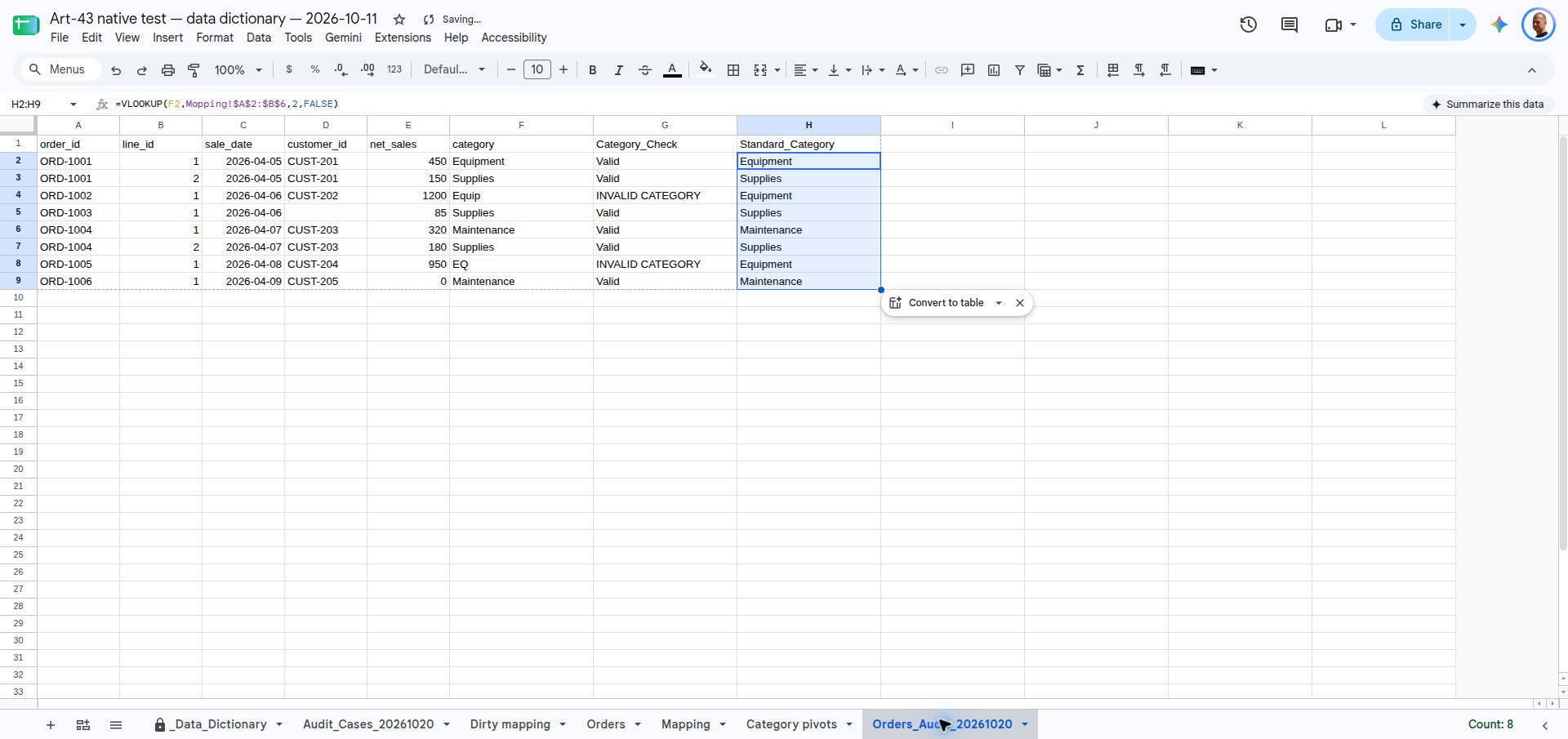
To see the audit work, you need dirty data, and the dropdown you just built would refuse it. So make a disposable copy of the Orders tab named Orders_Audit with no validation rule on it (copy the tab before you add the dropdown, or clear the validation on the copy). On that copy, retype F4 as Equip and F8 as EQ. This is a controlled dirty-input setup, not a demonstration of a paste bypass. Keep the validated Orders tab as it is. Then, on Orders_Audit, put the heading Category_Check in G1, enter this in G2, and fill down to G9:
=IF(SUMPRODUCT(--(Allowed_Categories=F2))>0,"Valid","INVALID CATEGORY")
Rows 4 and 8 should now say INVALID CATEGORY. Run the check after every import. It tests the data, not the rule, so it still works if a paste removed the validation.
The formula compares with an equals sign on purpose. A MATCH formula with match type 0 looks like an exact test, but Excel’s MATCH treats * and ? in the lookup value as wildcards, so an imported value of * could pass as a valid category. The equals comparison treats them as ordinary characters. It ignores upper and lower case, so “equipment” passes. The named range should cover only the filled choices: K2:K4 at first, and K2:K5 once you have added Software. Never include empty cells, because they would let a blank category pass, and don’t drop Software from the range once it is an approved category.
To repair the variants, add a tab named Mapping with Raw_Input and Standard_Category in A1:B1, then the approved translations in A2:B6: Equipment, Equip, and EQ all map to Equipment, and Supplies and Maintenance map to themselves. Put the heading Standard_Category in H1 and this in H2, filled down to H9:
=VLOOKUP(F2,Mapping!$A$2:$B$6,2,FALSE)
Modern Excel and Google Sheets can use =XLOOKUP(F2,Mapping!$A$2:$A$6,Mapping!$B$2:$B$6,"UNMAPPED") instead. Be aware that VLOOKUP’s exact-match mode can also treat * and ? as wildcards, so fix any value containing them by hand before trusting the result. XLOOKUP in its default mode compares literally. Leave any #N/A or UNMAPPED result showing so a person can decide. Only when every row is mapped, copy H2:H9 and paste values only over F2:F9 on Orders_Audit, and compare against the original before replacing anything. In the example, the three equipment variants carry $450, $1,200, and $950. After mapping, they total $2,600.00 under one label.
Keep It Governed
Limit who can change the definitions, but note that the platforms do different things. In Google Sheets, choose Data > Protect sheets and ranges, select the _Data_Dictionary sheet, choose Set permissions, and restrict editing to the people you name. A warning-only setting doesn’t stop anyone. In desktop Excel, Review > Protect Sheet locks the sheet’s locked cells, with an optional password, but it doesn’t offer a list of named editors. In Excel for the web, the path is Review > Manage Protection. Protection controls edits. It doesn’t tidy the sheet, and it isn’t tamper-proof. Ask someone other than the sheet’s owner to try an edit, so you know the setting works.
Use a short change rule: someone proposes the change, the field’s owner approves it, and then the dictionary is updated first, followed by the data table and formulas.
Frequently Asked Questions
How do I document a calculated column?
Set Source_System to Spreadsheet Formula, describe the logic in Business_Definition (for example, net revenue is gross sales minus line discounts), and list the columns it depends on. Then anyone changing an upstream field knows what else will move.
How often should we update it?
Whenever a column is added, renamed, or removed, or when a business rule changes, such as new product categories or a new discount policy. The rule is the same each time: update the dictionary first.
What to Do Next
A dictionary tells people what the numbers mean, but it can’t explain why two systems disagree. For that, read Why your business numbers don’t match across systems. For a wider check of a shared workbook, use The Small Business Data Audit Checklist.