
A repeated Order ID does not prove a duplicate. In an itemized sales export, several rows share an Order ID because the order has several line items. To find real duplicates, pick a line-level key, such as the source system’s line number combined with the Order ID, and flag repeats with COUNTIFS. Don’t delete on a count alone. Confirm the rows match in every business field and that the source system billed the line once, and then move only the confirmed duplicate to an exclusions log.
If you’ve ever clicked Remove Duplicates on an Order ID column and found your totals short afterward, this is why.
What a Repeat Can and Cannot Tell You
The first question is what one row in your file represents. In an order-level export, a row is a whole order, so a repeated Order ID is suspicious. In an order-line export, a row is one line item, and repeated Order IDs are normal.
A line-level key is whatever uniquely identifies a line: a line number the source assigns within each order (the Order ID plus that line number), or a single transaction-line ID that is unique across the file. The Order ID plus the product code is a tempting shortcut, but it can fail. A customer may order the same product on two separate lines with different options, delivery dates, or discounts, and that pair would repeat on perfectly valid lines.
Two cautions apply to any count you run:
- A count of 1 only says the key occurs once in that range. It doesn’t prove the row is accurate.
- A count above 1 is a prompt to investigate. It isn’t an instruction to delete.
The Example: Five Rows, Two Orders
Assume the source system numbers each order’s lines starting at 1 and bills each line once. Type it into a tab named Raw, with the headings in A1:I1 and the data in rows 2 to 6. Row is a plain counter column, and Order_Total is the order total the source reports.
| Row | Order_ID | Line_ID | Customer | Item_SKU | Quantity | Unit_Price | Line_Amount | Order_Total |
|---|---|---|---|---|---|---|---|---|
| 1 | ORD-101 | 1 | Acme Corp | SKU-A | 1 | 20.00 | 20.00 | 50.00 |
| 2 | ORD-101 | 2 | Acme Corp | SKU-B | 1 | 30.00 | 30.00 | 50.00 |
| 3 | ORD-101 | 2 | Acme Corp | SKU-B | 1 | 30.00 | 30.00 | 50.00 |
| 4 | ORD-102 | 1 | Beta LLC | SKU-C | 2 | 20.00 | 40.00 | 80.00 |
| 5 | ORD-102 | 2 | Beta LLC | SKU-D | 2 | 20.00 | 40.00 | 80.00 |
Row 3 repeats row 2 in every business field, which the export produced by mistake. Only the Row counter differs. Rows 4 and 5 look alike, with the same customer and the same $40.00 amount, but they are two different products on two different lines. They’re both legitimate.
The raw file adds up to $160.00. The correct figure, after removing only the true duplicate, is $130.00 ($50.00 for Acme and $80.00 for Beta).
Two Ways Remove Duplicates Goes Wrong
The tool keeps the first row it finds for each combination of the columns you select and deletes the rest. What you select decides what disappears.
| What you select | Rows kept | Total left | Real revenue lost |
|---|---|---|---|
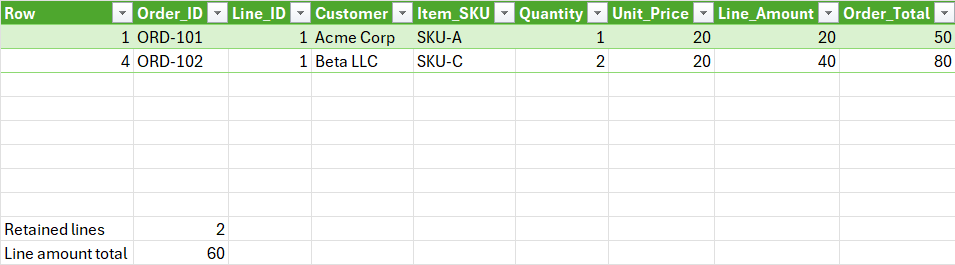
| Order_ID only | 2 (Rows 1 and 4) | $60.00 | $70.00, or 53.8% |
| Order_ID and Line_Amount | 3 (Rows 1, 2, and 4) | $90.00 | $40.00, or 30.8% |
Order_ID alone. The tool keeps the first ORD-101 row and the first ORD-102 row and deletes everything else. That removes the true duplicate, but it also removes the valid second line from each order, $30.00 and $40.00. Excel’s confirmation reads “3 duplicate values found and removed; 2 unique values remain.” Nothing in that message tells you that two of the three were real sales.
Order_ID plus amount. This feels safer, and it fixes Acme’s order. But Beta’s two products both cost $40.00, so the tool treats the second as a repeat of the first and deletes it. A $40.00 sale disappears only because it matched another line’s price.
The tool changes the selected data in place and doesn’t keep a log of what it removed. Undo works for a while, and Google Sheets and OneDrive keep version history. Restoring an old version returns the whole file to that earlier state, and copying selected content back out of an earlier version is manual work. Version history is a fallback, not an audit record. Keep an untouched copy of the export on its own tab.
A Safer Three-Step Check
1. Keep Raw, then work on a copy with a source ID. Leave the Raw tab alone. Copy A1:I6 to a tab named Clean. Then, before you sort, filter, or delete anything, type Original_Row_ID in J1 and the numbers 1 to 5 in J2:J6 as fixed values. Column A (Row) is only a display counter that you can renumber later. Column J is the permanent link back to the source row, so never change it.
2. Flag repeats without deleting. In a temporary helper column K on the Clean tab, test the key. Put Key_Count in K1 and this in K2:
=COUNTIFS($B$2:$B$6,B2,$C$2:$C$6,C2)
Fill it down to K6. In the example, it returns 1, 2, 2, 1, 1. Sheet rows 3 and 4 (Original_Row_ID 2 and 3) share the repeated key. Now compare them across every business field in columns B to I: order, line, customer, product, quantity, price, and amounts. If they match in every business field and the source system confirms the line was billed once, treat the second occurrence as a duplicate. If any field differs, or you can’t confirm it against billing records, mark both rows unresolved and leave them in place until you can.
The formula needs filled identifier cells and ranges of equal size. It also treats a trailing space as a different value. If your source defines those spaces as accidental, remove them in a working column and keep any identifier you can’t resolve visible. If your IDs contain asterisks, question marks, or tildes, those have special meanings in COUNTIFS and need to be escaped before you test.
3. Move it to an exclusions log, then check the totals. Make a tab named Exclusions with the same headings in A1:J1, then Exclusion_Reason in K1 and Action_Taken in L1. On Clean, copy A4:J4, the second occurrence (Original_Row_ID 3), but not the helper in column K. Paste it as values only into Exclusions A2:J2. Add a reason in K2 (“Duplicate line item, identical key ORD-101-2”) and an action in L2 (“Quarantined redundant export duplicate; retained Original_Row_ID 2”). Check that it landed. Then delete row 4 from Clean and clear the helper column K. Because the Row counter in column A now has a gap, renumber it 1 to 4 on Clean. Leave column J alone.
Then confirm both of these are TRUE:
- Row counts: Raw 5 equals Clean 4 plus Exclusions 1.
- Dollars: Raw $160.00 equals Clean $130.00 plus Exclusions $30.00, using the Line_Amount column (H) on each tab.
Those totals can balance even when the wrong record was removed, so add one more check. On the Clean tab, type the source IDs 1 to 5 in L2:L6, and enter this in M2, filled down to M6:
=COUNTIF($J$2:$J$5,L2)+COUNTIF(Exclusions!$J$2:$J$2,L2)=1
Every cell should show TRUE. A FALSE means a source row is missing or appears twice. If every cell shows FALSE, check that column J holds the IDs.
This check is for internal consistency. It doesn’t say your $130.00 will match your bank deposit. Fees, refunds, and payout timing separate the two, which I explain in “Why your business numbers don’t match across systems”.
Frequently Asked Questions
Can conditional formatting highlight the repeats?
Yes. While the Key_Count helper from step 2 is in column K, select A2:K6 and add a formula rule with =$K2>1 (in Excel, Home > Conditional Formatting > New Rule > Use a formula to determine which cells to format). Sheet rows 3 and 4 light up, and the two $40.00 Beta lines stay plain. Excel’s built-in Duplicate Values rule highlights single cells, so applied to Order_ID it would light up every line of every multi-line order. A custom rule highlights repeated keys. Those are candidates to investigate, not confirmed errors.
What if my export has no line number?
Test the Order ID plus the product code as a starting point, with =COUNTIFS($B$2:$B$6,B2,$E$2:$E$6,E2). A count above 1 may mean a customer legitimately bought the same product on separate lines. If the quantities or prices differ, or you can’t confirm the repeat in the billing system, leave the rows unresolved.
Is Remove Duplicates ever fine?
It can be, if you have kept an untouched copy, you have selected every column that makes up a verified unique key, you have confirmed against source records that the repeats are redundant, and you don’t need a record of what was removed. If you need that record, use the copy, log, check, and remove sequence above.
What to Do Next
Once you know which rows are duplicates and which are real lines, run the wider checks in The Small Business Data Audit Checklist before you build a report on the cleaned file.