
To calculate a 3-month rolling average of sales, start in the third month and average it with the two months before it: in row 4, =AVERAGE(C2:C4), copied down. Leave the first two months without a value. Check that every window holds three numbers for three consecutive months. Then read each month’s actual sales next to its average, because smoothing can delay or hide a turn.
The plain formula needs those checks because AVERAGE doesn’t warn you about gaps. If one month in the window is blank or says “TBD,” it averages the other two and divides by 2. The result looks like a 3-month average, but it isn’t.
The Example Sheet
Here’s a made-up eight-month sales series for a small business, January through August 2026, totaling $405,000. Put the headings in A1:G1 and the months in rows 2 to 9: period numbers 1 through 8 in A2:A9, the first day of each month as a real date in column B (for example, =DATE(2026,1,1) in B2 for January, =DATE(2026,2,1) in B3, and so on to August), and monthly sales in column C. Columns D to G are formulas. When everything is built, the sheet shows this:
| Row | Month | Sales (C) | 3-month avg (D) | Sales vs. avg (E) | % (F) | Status (G) |
|---|---|---|---|---|---|---|
| 2 | Jan | $42,000 | WINDOW < 3 PERIODS | WINDOW < 3 PERIODS | WINDOW < 3 PERIODS | WARM-UP: < 3 MONTHS |
| 3 | Feb | $45,000 | WINDOW < 3 PERIODS | WINDOW < 3 PERIODS | WINDOW < 3 PERIODS | WARM-UP: < 3 MONTHS |
| 4 | Mar | $48,000 | $45,000 | +$3,000 | +6.67% | VALID 3M WINDOW (INITIAL) |
| 5 | Apr | $51,000 | $48,000 | +$3,000 | +6.25% | VALID 3M WINDOW (ALIGNED DIRECTION) |
| 6 | May | $60,000 | $53,000 | +$7,000 | +13.21% | VALID 3M WINDOW (ALIGNED DIRECTION) |
| 7 | Jun | $54,000 | $55,000 | -$1,000 | -1.82% | VALID 3M WINDOW (LAG: ACTUAL DOWN / 3M AVG UP) |
| 8 | Jul | $48,000 | $54,000 | -$6,000 | -11.11% | VALID 3M WINDOW (ALIGNED DIRECTION) |
| 9 | Aug | $57,000 | $53,000 | +$4,000 | +7.55% | VALID 3M WINDOW (LAG: ACTUAL UP / 3M AVG DOWN) |
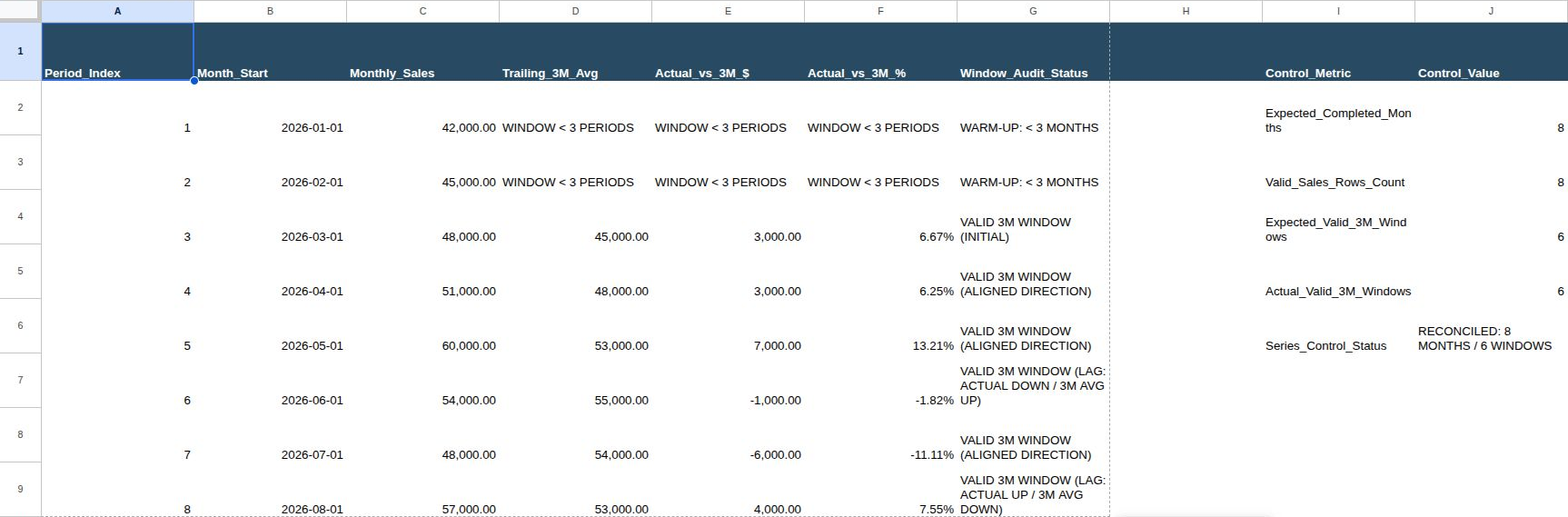
Keep the table sorted oldest to newest, and list only completed months. September stays off the sheet until it closes.
Step 1: Leave the First Two Months Empty on Purpose (D2:D3)
The common shortcut is =AVERAGE(C$2:C2) dragged down from D2. That puts a 1-month value ($42,000) in January and a 2-month average ($43,500) in February under a heading that promises three months. A chart then mixes three window lengths in one line.
Eight months give you six complete 3-month windows, March through August. In general, a series of N periods has N – 2 complete 3-period windows. The first two rows should say so. In D2:
=IF(OR(COUNT(A2)<1, COUNT(B2)<1, COUNTA(C2)<>1, COUNT(C2)<>1), "CHECK WINDOW INPUTS", IF(OR(A2<>1, DAY(B2)<>1, C2<0), "CHECK WINDOW INPUTS", "WINDOW < 3 PERIODS"))
In D3:
=IF(OR(COUNT(A2:A3)<2, COUNT(B2:B3)<2, COUNTA(C2:C3)<>2, COUNT(C2:C3)<>2), "CHECK WINDOW INPUTS", IF(OR(A2<>1, A3<>A2+1, DAY(B2)<>1, DAY(B3)<>1, B3<>EDATE(B2,1), COUNTIF(C2:C3,"<0")>0), "CHECK WINDOW INPUTS", "WINDOW < 3 PERIODS"))
These still check the inputs, so a bad January or February row shows up immediately instead of waiting for March.
Step 2: Add the Guarded Average (D4:D9)
Enter this in D4 and copy it down to D9:
=IF(OR(COUNT(A2:A4)<3, COUNT(B2:B4)<3, COUNTA(C2:C4)<>3, COUNT(C2:C4)<>3), "CHECK WINDOW INPUTS", IF(OR(A2<>INT(A2), A3<>A2+1, A4<>A3+1, DAY(B2)<>1, DAY(B3)<>1, DAY(B4)<>1, B3<>EDATE(B2,1), B4<>EDATE(B3,1), COUNTIF(C2:C4,"<0")>0), "CHECK PERIOD ORDER / INPUTS", AVERAGE(C2:C4)))
Format D4:D9 as currency, and don’t wrap the average in ROUND. The comparison columns need the full value.
The formula has two stages, and the order matters. In Excel and Google Sheets, OR evaluates every argument before it answers, so DAY(B2) on a cell holding “TBD” returns #VALUE! even if another condition in the same OR is already true. The outer IF confirms that every cell is a number first. Only then does the inner IF run the date checks.
Stage 1 catches missing and text values. AVERAGE ignores empty cells and text, and Google Sheets behaves the same way. Clear May’s sales in C6, and a plain AVERAGE reports $49,500 for May instead of $53,000, 6.60% low. June and July are understated too, because May sits in their windows. With the guard, D6:D8 show CHECK WINDOW INPUTS and August, whose window no longer includes May, still calculates. Typing “TBD” in C6 gives the same result.
Zero is different. A zero is a number, so AVERAGE includes it: a zero in C6 drops May’s average to $33,000, 37.74% low. The guard can’t tell a real zero from a placeholder. Enter 0 only for a completed month that genuinely had no sales, and never as a stand-in for a month that hasn’t closed or a sync that failed. Blank or Zero? Why Missing Values Change Your Average covers that choice in detail.
Stage 2 catches gaps in the calendar. Suppose April is missing from the export, so rows 3 to 5 hold February, March, and May. A plain 3-row average gives $51,000 across four calendar months. EDATE returns the same day a given number of months later, so B5<>EDATE(B4,1) is true and the row shows CHECK PERIOD ORDER / INPUTS. The same stage requires the period numbers to step by 1, dates to fall on the first of the month, and sales to be zero or positive.
That last rule means a month with net refunds larger than its sales will stop the average. If your business can have a negative month, decide how to report it before you loosen the guard.
To try these failures, work on a copy of the sheet and restore the original value before testing the next one.
Step 3: Compare Each Month With Its Average (E2:G9)
The average alone doesn’t tell you what happened this month. Add three columns beside it. In E2, copied to E9:
=IF(OR(NOT(ISNUMBER(D2)), NOT(ISNUMBER(C2))), D2, C2 - D2)
In F2, copied to F9 and formatted as a percentage:
=IF(OR(NOT(ISNUMBER(D2)), NOT(ISNUMBER(C2))), D2, IF(D2<=0, "N/A (ZERO BASE)", (C2 - D2) / D2))
In G2:
=IF(D2="WINDOW < 3 PERIODS", "WARM-UP: < 3 MONTHS", D2)
In G3, copied to G9:
=IF(D3="WINDOW < 3 PERIODS", "WARM-UP: < 3 MONTHS", IF(NOT(ISNUMBER(D3)), D3, IF(D2="WINDOW < 3 PERIODS", "VALID 3M WINDOW (INITIAL)", IF(OR(NOT(ISNUMBER(D2)), NOT(ISNUMBER(C2)), NOT(ISNUMBER(C3))), "CHECK PRIOR WINDOW", IF(AND(C3<C2, D3>D2), "VALID 3M WINDOW (LAG: ACTUAL DOWN / 3M AVG UP)", IF(AND(C3>C2, D3<D2), "VALID 3M WINDOW (LAG: ACTUAL UP / 3M AVG DOWN)", "VALID 3M WINDOW (ALIGNED DIRECTION)"))))))
Any warning in D passes straight through E, F, and G. G compares this month with last month twice, once for actual sales and once for the average, and flags the rows where they point in opposite directions.
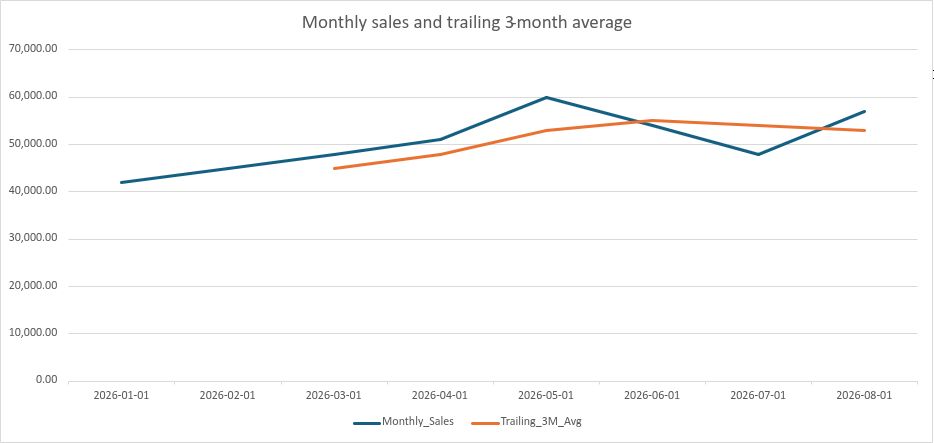
Look at June. Sales fell $6,000 from May, a 10% drop, yet the 3-month average rose from $53,000 to $55,000. The reason is simple once you see it: each month, one month enters the window and one leaves. The average changes by the new month minus the month dropping out, divided by 3. June ($54,000) replaced March ($48,000), so the average rose $2,000, even though June was below May. E7 shows -$1,000, and G7 flags the divergence the month it happens.
August is the mirror image. Sales rebounded $9,000 from July, but August ($57,000) replaced May’s $60,000 peak, so the average slipped $1,000. Read alone, the average says things are softening. E9 shows August $4,000 above it.
That doesn’t mean a rolling average always runs a month or two behind. If the new month is below both last month and the month leaving the window, both turn down together. With sales of 10, 10, 20, and then 0, the average falls from 13.33 to 10.00 in the same period that sales drop. The average delays a turn only when those two comparisons disagree. The NIST handbook on moving averages covers the underlying method.
You may see a centered average suggested instead: May’s value would be =AVERAGE(C5:C7), and April through June, which puts the peak in May at $55,000. It lines up better with the month it describes, but it needs the following month. August, your most recent completed month, has no centered value until September closes. For a monthly report, use the trailing version.
Step 4: Reconcile the Series (I1:J6)
A short control block confirms the column is complete. Put the headings Control_Metric and Control_Value in I1:J1 and these labels in I2:I6:
- J2, Expected_Completed_Months: type
8 - J3, Valid_Sales_Rows_Count:
=COUNT(C2:C9) - J4, Expected_Valid_3M_Windows:
=IF(NOT(ISNUMBER(J2)), "CHECK CONTROL COUNT", IF(OR(J2<3, J2<>INT(J2)), "CHECK CONTROL COUNT", J2 - 2)) - J5, Actual_Valid_3M_Windows:
=COUNT(D2:D9) - J6, Series_Control_Status:
=IF(NOT(ISNUMBER(J2)), "CHECK CONTROL COUNT", IF(OR(J2<3, J2<>INT(J2)), "CHECK CONTROL COUNT", IF(OR(COUNTA(A2:A9)<>J2, COUNT(A2:A9)<>J2, COUNTA(B2:B9)<>J2, COUNT(B2:B9)<>J2, COUNTA(C2:C9)<>J2, COUNT(C2:C9)<>J2, COUNTIF(C2:C9,"<0")>0), "CHECK RAW SERIES INPUTS", IF(OR(J5<>J4, COUNT(D4:D9)<>J4, COUNT(D2:D3)<>0, COUNTIF(G4:G9,"CHECK*")>0), "CHECK ROLLING WINDOWS", "RECONCILED: " & J2 & " MONTHS / " & J4 & " WINDOWS"))))
With the example data, J6 reads RECONCILED: 8 MONTHS / 6 WINDOWS. A blank, text, or negative sales value shows CHECK RAW SERIES INPUTS. A misdated month shows CHECK ROLLING WINDOWS. Text in J2 shows CHECK CONTROL COUNT. When you add September, update J2 and extend the ranges.
A placeholder zero still reconciles, for the reason in Step 2. The control block checks structure. Whether each number is real is up to whoever enters it.
Troubleshooting
| Symptom | Cause | Fix |
|---|---|---|
| January and February show values | Anchored AVERAGE(C$2:C2) dragged from D2 |
Use the D2 and D3 formulas |
| An average looks too low after a blank month | AVERAGE divided by 2 | Use the guarded D4 formula |
| May’s average fell to $33,000 | A zero was entered for a month without complete data | Enter 0 only for a completed zero-sales month |
| #VALUE! in D | Date checks ran on text | Keep the type checks in the outer IF |
| Average rose while sales fell | The new month beat the month leaving the window | Read E and G alongside D |
N/A (ZERO BASE) in F |
The 3-month average is zero | Read the dollar gap in E |
Frequently Asked Questions
Should I use a 3-month or a 12-month rolling average?
A 3-month average smooths ordinary month-to-month noise and still responds to recent changes. When seasonality dominates, a 12-month average puts a full year in every window. Don’t confuse it with a trailing 12-month total: the average is a monthly run rate, and the total, a SUM of the same 12 months, is 12 times larger.
Can I use a chart’s moving average trendline instead?
For a quick look, yes. A trendline gives you no cells to check for blanks, skipped months, or divergence, so calculate the column first. To chart it in Excel, set the ranges yourself. Selecting B1:D9 and inserting a line chart can treat the two warm-up rows as headers and drop January and February. Use B2:B9 for the axis and C2:C9 for sales. For the average line, enter =IF(ISNUMBER(D2:D9),D2:D9,NA()) in a spare column such as P2 and use P2:P9 as that series’ values. The chart skips the #N/A values, so the line starts in March. Use the single cells C1 and D1 as the two series names so the legend reads cleanly.
What if my export lists the newest month first?
Sort it oldest to newest before you build the formulas. The D2:D3 warm-up rows, the EDATE checks, and the chart axis all assume time runs down the sheet.
What to Do Next
A rolling average belongs next to the monthly figures, not in place of them. How to build a monthly KPI scorecard shows where trend columns fit, and What to Include in a Monthly Business Report covers explaining them. If month lengths or holidays distort single months, compare monthly sales when trading days differ first. For describing gaps like F’s percentages, see percentage change vs. percentage points.