
In Excel and Google Sheets, AVERAGE ignores empty cells and counts zeros. So use a zero when you measured something and it was zero, and leave a cell empty when the value is unknown or does not exist. Beyond that, neither rule is always right, because the answer depends on what your average is supposed to describe. An average of days the store was open should skip a closed day. An average across every scheduled weekday should include it. Decide which population you mean before you calculate.
An Average Is a Fraction
AVERAGE adds up the numbers in a range and divides by how many numbers there are. A blank cell isn’t a number, so it gives up its place in the count. A zero is a number, so it keeps its place.
Take three cells holding 10, an empty cell, and 0. AVERAGE adds 10 + 0 = 10 and divides by 2, which gives 5.00. Replace the empty cell with a zero, and the total is still 10, but now you divide by 3, which gives 3.33. That’s a drop of 33.3%, rounded to one decimal, and no sales were lost. Only the count changed.
Adding a zero moves the average toward zero. With a positive average, that means down. With a negative average, such as net losses, it means up.
One Week, Three Different Averages
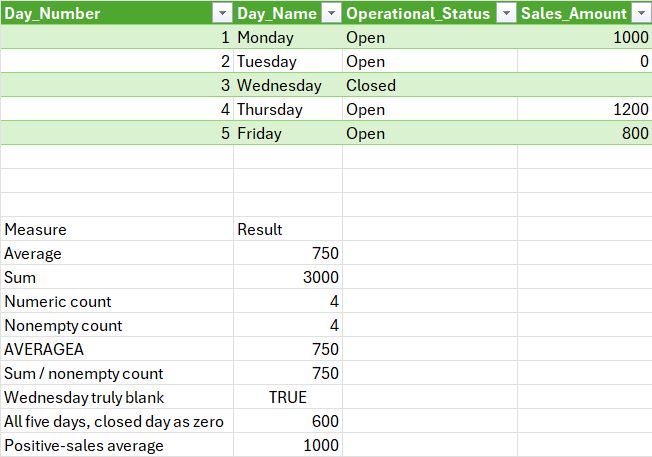
This is an example for a small shop. Enter it with the headings in A1:D1 and the five days in rows 2 to 6, so that status is in column C and sales are in column D. The formulas below use those cells:
| A: Day_Number | B: Day_Name | C: Operational_Status | D: Sales_Amount |
|---|---|---|---|
| 1 | Monday | Open | 1000 |
| 2 | Tuesday | Open | 0 |
| 3 | Wednesday | Closed | (leave empty) |
| 4 | Thursday | Open | 1200 |
| 5 | Friday | Open | 800 |
Total sales are $3,000. The shop was open four days, and Tuesday was open with no customers. Depending on the question, the same data gives three answers:
| Question | How | Days counted | Average |
|---|---|---|---|
| What do we sell on a day we’re open? | =AVERAGE(D2:D6) or =AVERAGEIF(C2:C6,"Open",D2:D6) |
4 | $750 |
| What do we sell across all five weekdays? | $3,000 divided by 5 | 5 | $600 |
| What do we sell on days that had sales? | =AVERAGEIF(D2:D6,">0") |
3 | $1,000 |
None of these is wrong. The mistake is giving one when someone asked for another. If a manager asks how the shop performs when open and you report $600, you’ve charged the shop for a planned maintenance closure. If you report $1,000, you’ve hidden Tuesday, a day the doors were open and nothing sold. Note that the ">0" version also skips negative numbers such as refunds, so it only matches “skip the zeros” when no values are negative.
Keep the status in its own column, as above, so you can change the definition without overwriting data.
Three Rules for Empty Cells
- Enter zero for a confirmed zero. Tuesday was open and nothing sold. That’s a measurement, and it belongs in the average.
- Leave non-operating days out of operating metrics. For an open-day average, skip the closure by leaving it blank, and restrict the population with a formula criterion such as the AVERAGEIF mentioned above. An ordinary visual filter won’t do this, as the troubleshooting list below explains.
- Keep unknown values unknown. Suppose Thursday was open, but the point-of-sale system went down, and nothing was recorded. Don’t enter zero. Leave D5 blank and say so.
On that third point, AVERAGE and AVERAGEIF would report $600 for the week, based on three of the four open days. That figure looks complete and isn’t. The honest version is: “Provisional average of $600 from 3 of 4 open days (75% coverage); Thursday is missing because of a system outage.” The $1,800 you can see isn’t the week’s total, and the true average is unknown until you find Thursday’s sales in another record. Disclosing the number of days used is necessary, but it doesn’t prove the three recorded days resemble the missing one.
A formula can flag the gap. A conditional formatting rule applied to A2:D6 with the custom formula =AND($C2="Open",ISBLANK($D2)) highlights open days with no sales entered, and leaves the closure and the zero alone. In Excel, that’s Home > Conditional Formatting > New Rule > Use a formula to determine which cells to format. The built-in rule for blank cells isn’t a substitute: this week it highlights both the closed Wednesday and the missing Thursday. ISBLANK flags only truly empty cells. It won’t flag a cell holding ="", which the next section covers.
The Formula That Looks Empty but Isn’t
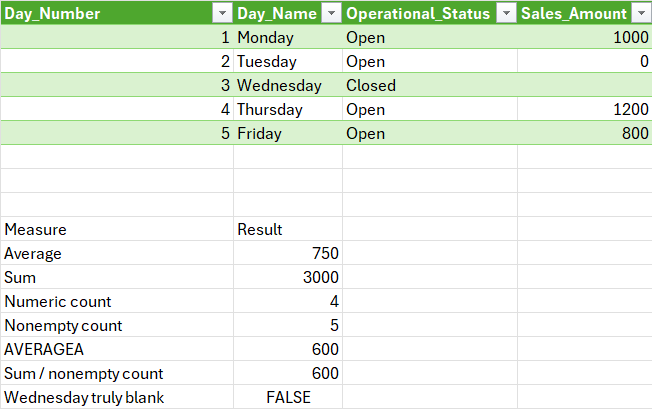
Some cells look blank because a formula returned an empty string, such as ="". These behave differently from truly empty cells. To try it, start from a fresh copy of the base week, with Thursday’s D5 back at 1200 and no outage blank. Then replace only Wednesday’s empty D4 with ="". The table shows the results for that setup:
| Formula | Truly empty cell | Cell containing ="" |
|---|---|---|
=AVERAGE(D2:D6) |
$750 | $750 |
=AVERAGEA(D2:D6) |
$750 | $600 |
=SUM(D2:D6)/COUNT(D2:D6) |
$750 | $750 |
=SUM(D2:D6)/COUNTA(D2:D6) |
$750 | $600 |
AVERAGEA treats text, including an empty string, as zero, and COUNTA counts the empty string as a filled cell. Either one pulls the average down to $600 with no warning. If you leave Thursday blank from the outage example as well, the same formulas give different figures ($600 for AVERAGE and $450 for AVERAGEA), so reset before comparing. Stick with AVERAGE, or divide SUM by COUNT, which counts only numbers.
When the Average Doesn’t Match Your Expectations
- Hidden or filtered rows still count. Hiding rows or applying a filter doesn’t change an ordinary AVERAGE. To average only the visible rows, use
=SUBTOTAL(101,D2:D6). Filtering out Tuesday’s zero, or hiding its row, leaves AVERAGE at $750, while SUBTOTAL(101) gives $1,000. - Hidden zeros still count. A number format that displays zero as nothing doesn’t remove the zero. Look in the formula bar.
- Numbers stored as text are skipped. AVERAGE and COUNT ignore them. If one amount is text, the average changes without any error. To convert, use a helper column with
=IF(D2="","",VALUE(D2)), which keeps missing values from turning into zero, and check the result. Use it only on text that really is a number in your sheet’s locale. Note that the helper returns""for blanks, so average the helper column with AVERAGE, not AVERAGEA. Changing the number format doesn’t convert text that’s already stored. - A range with no numbers returns #DIV/0!. Avoid wrapping it so it returns 0, because that creates the zero you were trying to avoid. A better guard is
=IF(COUNT(D2:D6)=0,"No numeric data",AVERAGE(D2:D6)). One limit: COUNT ignores error values as well as blanks, so a range holding only errors would also print “No numeric data.” Check for source errors separately. - A cell that looks empty may hold a space. COUNTBLANK won’t count it. Clear the cell, and use TRIM when cleaning data.
Frequently Asked Questions
Does MEDIAN ignore blank cells too?
Yes, in Excel and Google Sheets. Adding a zero adds a value to the list, but the median may move toward zero or stay the same. For example, 5, 5, 5 and 0, 5, 5, 5 both have a median of 5.
Should I ever use AVERAGEA?
Rarely, for business reporting. It counts text notes like “Pending” and empty strings as zero, and counts TRUE as 1 and FALSE as 0. Use AVERAGE for numeric metrics.
How do I report an average when some data is missing?
State what the average covers and how much data is missing, as in the Thursday example. Then record the investigation to find the missing value. Don’t fill in a guess.
What to Do Next
Once you’ve settled what your averages mean, write the definitions down where everyone who uses the sheet can see them. How to build a monthly KPI scorecard covers choosing metrics and keeping their definitions consistent.