
To keep categories consistent, list the allowed names on their own tab and point a dropdown rule at that range, set to reject invalid input. That stops typos as people type. It won’t fix values already there, and pasted or imported text can get past the rule or replace it, depending on the app. So add an audit column that checks every row, and confirm the category totals add up to the raw total.
How $1,500 Goes Missing
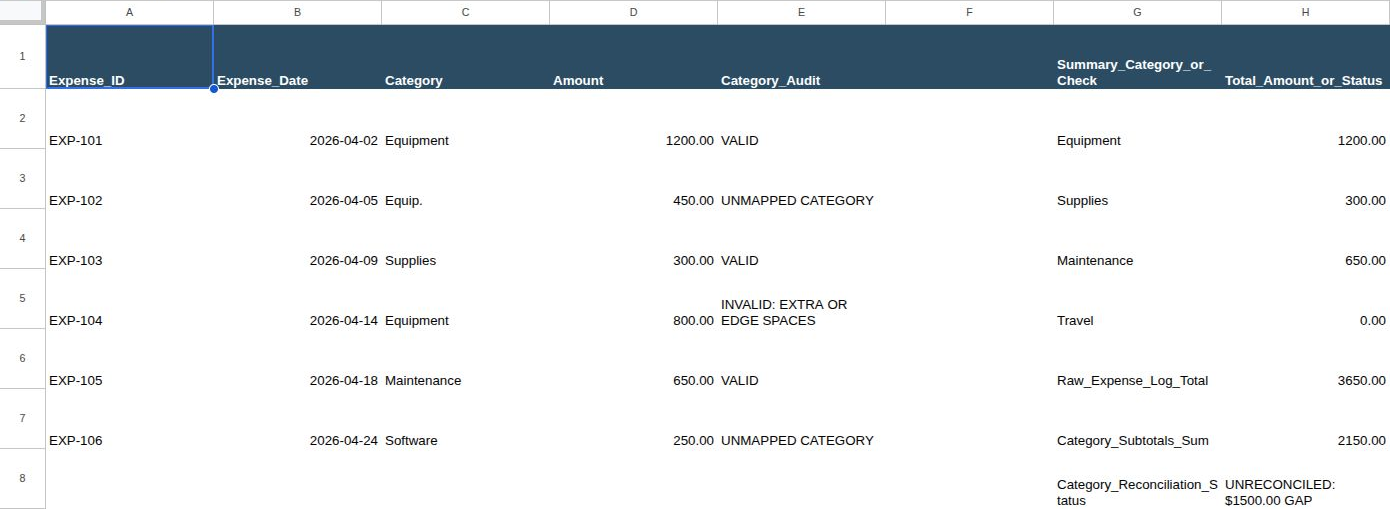
Here’s a made-up expense log for a small shop: six April expenses totaling $3,650, on a tab named Expenses. Put the headings Expense_ID, Expense_Date, Category, Amount, and Category_Audit in A1:E1, then enter these rows. Type the dates as real dates and the amounts as plain numbers:
| Row | Expense_ID (A) | Expense_Date (B) | Category (C) | Amount (D) |
|---|---|---|---|---|
| 2 | TXN-101 | 2026-04-02 | Equipment | 1200 |
| 3 | TXN-102 | 2026-04-05 | Equip. | 450 |
| 4 | TXN-103 | 2026-04-09 | Supplies | 300 |
| 5 | TXN-104 | 2026-04-14 | Equipment (one trailing space) |
800 |
| 6 | TXN-105 | 2026-04-18 | Maintenance | 650 |
| 7 | TXN-106 | 2026-04-24 | Software | 250 |
The space after Equipment in C5 is deliberate. =LEN(C5) should return 10. If it returns 9, the space was lost on the way in, so retype it.
Three categories cause trouble: Equip. (row 3) was typed before the dropdown existed, Equipment (row 5) came in through a paste, and Software (row 7) was added to the list after the summary was built.
That summary used to list only the first four names (Equipment, Supplies, Maintenance, and Travel), each totaled with =SUMIFS($D$2:$D$7, $C$2:$C$7, G2). SUMIFS adds a row only when its category matches the summary name, and none of those three rows match one. The four totals add up to $2,150, not $3,650. That’s $1,500 missing, 41.10% of the month’s spending. Equipment alone shows $1,200 instead of $2,450. Nothing on the sheet shows an error.
That four-name summary is the before picture, so don’t rebuild it. Steps 1 to 4 build its replacement.
Step 1: Put the Categories on Their Own Tab
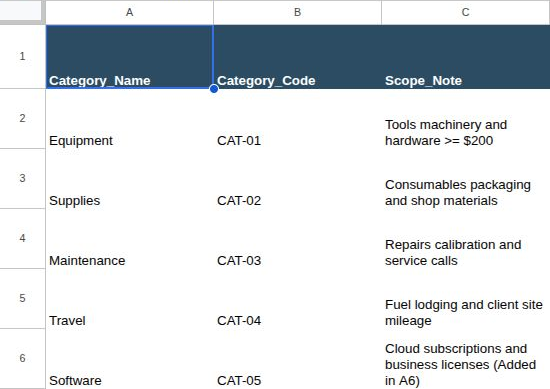
Create a tab named Categories. Put the headings Category_Name, Category_Code, and Scope_Note in A1:C1 and one category per row below:
| Row | Category_Name | Category_Code | Scope_Note |
|---|---|---|---|
| 2 | Equipment | CAT-01 | Tools, machinery and hardware, $200 or more |
| 3 | Supplies | CAT-02 | Consumables, packaging and shop materials |
| 4 | Maintenance | CAT-03 | Repairs, calibration and service calls |
| 5 | Travel | CAT-04 | Fuel, lodging and client site mileage |
| 6 | Software | CAT-05 | Cloud subscriptions and business licenses |
The $200 threshold is part of the example, not a rule you need. Don’t type the categories as a comma-separated list inside the validation dialog. A list on a tab can be read, documented, and referenced by every formula below, so the dropdown, the audit, and the summary all use the same names. Build a small data dictionary for your spreadsheet shows how to document the rest of your fields the same way.
Step 2: Point the Dropdown at the List
In Google Sheets, select Expenses!C2:C7, then choose Data > Data validation > Add rule. Under Criteria, choose Dropdown (from a range) and enter =Categories!$A$2:$A$6. Open Advanced options, set If the data is invalid to Reject the input instead of Show a warning, and click Done. Google’s dropdown help page covers the same steps.
In Excel, first name the list. Select Categories!A2:A6, type CategoryList in the Name Box to the left of the formula bar, and press Enter. Excel for the web may reject a direct reference to another sheet in the validation box, and a name works in both versions. Then select Expenses!C2:C7, choose Data > Data Validation, set Allow to List, and enter =CategoryList as the Source. On the Error Alert tab, choose Stop, which Excel for the web labels Blocking. The Warning and Information styles let the entry through. Microsoft’s data validation guide has the details.
Test it by typing a made-up category into C2. Both apps should refuse it.
The rule controls new typed entries, and that’s all you should count on. Values already in the column stay as they are. A pasted or imported value may get in or may replace the rule, depending on the app, version, and paste mode. In desktop Excel, Data > Data Validation > Circle Invalid Data highlights cells that break the rule. Steps 3 and 4 work in both apps and don’t depend on how a value arrived.
Step 3: Add an Audit Column (E2:E7)
Put the heading Category_Audit in E1. Enter this in E2 and copy it down to E7:
=IF(OR(TRIM(A2)="", NOT(ISNUMBER(B2)), TRIM(C2)="", ISBLANK(D2), NOT(ISNUMBER(D2))), "CHECK INPUTS", IF(OR(B2<DATE(2000,1,1), D2<0), "CHECK INPUTS", IF(C2<>TRIM(C2), "INVALID: EXTRA OR EDGE SPACES", IF(OR(ISNUMBER(FIND("*", C2)), ISNUMBER(FIND("?", C2)), ISNUMBER(FIND("~", C2))), "INVALID: WILDCARD CHARACTER", IF(ISNA(MATCH(C2, Categories!$A$2:$A$6, 0)), "UNMAPPED CATEGORY", "VALID")))))
The checks run in order, and each one exists for a reason:
- Missing or wrong-type inputs. The first IF confirms there’s an ID, a category, a date stored as a number, and a numeric amount. Only then does the second IF compare the date with January 1, 2000, and the amount with zero. A text date like “TBD” or a blank amount shows
CHECK INPUTSinstead of an error. Negative amounts are rejected too. If your log records refunds as negatives, decide how to handle them before you loosen that check. - Extra spaces.
C2<>TRIM(C2)catches leading and trailing spaces, such asEquipmentin row 5. Because TRIM also collapses repeated spaces inside the text, a double space in the middle is flagged as well. - Wildcards. This check is easy to miss. With a match type of 0, MATCH treats
*and?as wildcards, and~as an escape character. Without this check, someone enteringEquip*would match Equipment and getVALID, yet SUMIFS would leave the row out of the Equipment total. FIND has no wildcards, so it looks for those three characters literally before MATCH runs. - Unlisted names. MATCH looks the category up in the master list.
Equip.isn’t there, so row 3 showsUNMAPPED CATEGORY.
MATCH isn’t case-sensitive, so equipment passes. Choosing from the dropdown keeps capitalization uniform anyway.
Step 4: Reconcile the Category Totals (G1:H9)
Put the headings Summary_Category_or_Check and Total_Amount_or_Status in G1:H1. In G2:G6, link the names, =Categories!A2 through =Categories!A6. In H2, copied to H6:
=SUMIFS($D$2:$D$7, $C$2:$C$7, G2)
Then three check rows. Put the labels Raw_Expense_Log_Total, Category_Subtotals_Sum, and Category_Reconciliation_Status in G7:G9. In H7, the raw total, which refuses to add up a log with bad inputs:
=IF(OR(COUNTA(A2:A7)<6, COUNT(B2:B7)<6, COUNTIFS(B2:B7, ">="&DATE(2000,1,1))<6, COUNTA(C2:C7)<6, COUNTA(D2:D7)<6, COUNT(D2:D7)<6, COUNTIF(D2:D7,"<0")>0, COUNTIF(E2:E7,"CHECK INPUTS")>0), "CHECK LOG INPUTS", SUM(D2:D7))
In H8, the sum of the category totals, which stops if the summary has fewer names than the master list:
=IF(OR(COUNTA(G2:G6)<COUNTA(Categories!$A$2:$A$6), COUNTIF(G2:G6,"")>0), "CHECK SUMMARY LIST", SUM(H2:H6))
In H9, the status:
=IF(OR(NOT(ISNUMBER(H7)), NOT(ISNUMBER(H8))), "CHECK INPUTS / SUMMARY LIST", IF(SUMPRODUCT(COUNTIF(G2:G6, G2:G6))<>COUNTA(G2:G6), "DUPLICATE SUMMARY CATEGORY", IF(OR(COUNTIF(E2:E7,"VALID")<>COUNTA(A2:A7), ROUND(H7-H8,2)<>0), "UNRECONCILED: $" & TEXT(ABS(H7-H8),"0.00") & " GAP", "RECONCILED")))
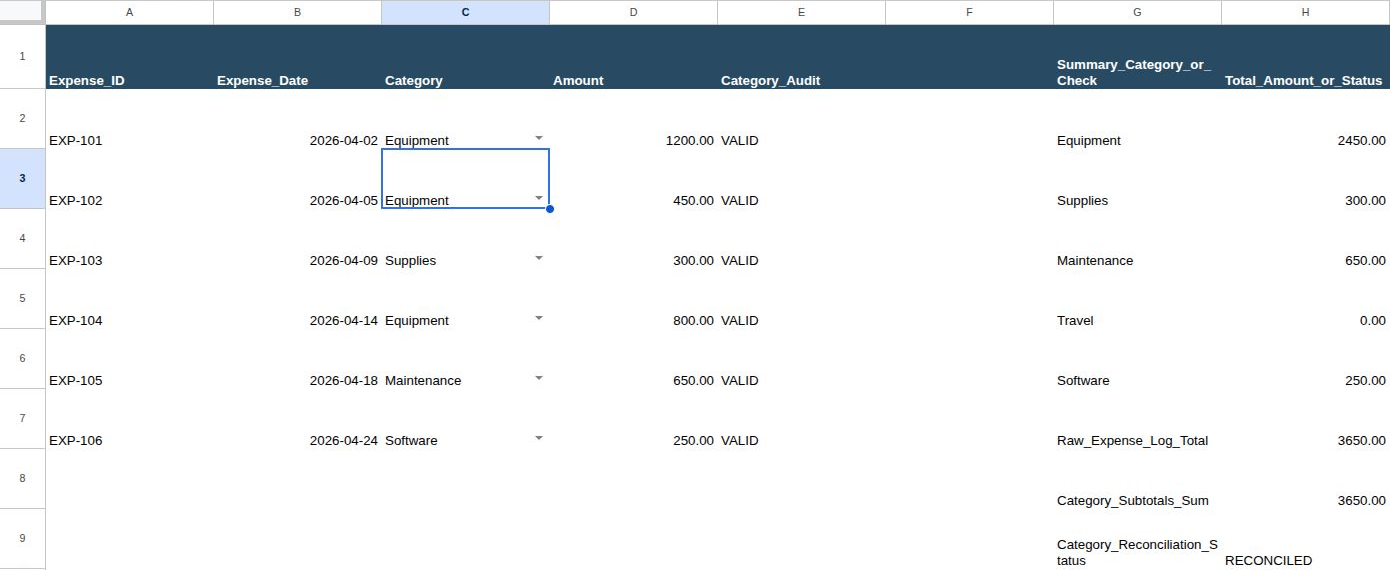
Run against the log as entered, the new summary already recovers Software’s $250, because Software is now on the list. H8 shows $2,400 against H7’s $3,650, and H9 reads UNRECONCILED: $1250.00 GAP. E3 says UNMAPPED CATEGORY , and E5 says INVALID: EXTRA OR EDGE SPACES, so you know which rows hold the missing $1,250. Pick Equipment from the dropdown in C3 and C5. The categories then total $2,450, $300, $650, $0, and $250. H7 and H8 both show $3,650, and H9 says RECONCILED.
H9 checks two things, not one. The dollar gap catches money that missed the summary, like that $1,250. The count of VALID rows catches a bad category on a row worth nothing. Starting from the corrected log, on a copy, change row 3 back to Equip. and its amount to $0. Both totals become $3,200 with no gap. H9 still shows UNRECONCILED: $0.00 GAP, because only five of six rows are valid. Equip* on that $0 row gives the same result. A $0 row with a wrong category matters later, when someone edits the amount, and the money vanishes from the summary.
The other branches cover the rest: a blank, text, or negative amount, or a text date, shows CHECK INPUTS / SUMMARY LIST. So does a blank name in the summary. A category listed twice in G2:G6 shows DUPLICATE SUMMARY CATEGORY, because it would be counted twice. Restore the original value before trying the next case.
Adding a Category or an Expense Row
Every range above is fixed. Adding a name below the last row doesn’t extend them, so update them together. Suppose you add Training (CAT-06) in Categories!A7 and a $400 Training expense in row 8 of the log:
- Master list: point the dropdown at
Categories!$A$2:$A$7(in Excel, redefineCategoryList), and change the MATCH range in the audit formula to match. - Log rows: apply the dropdown to C2:C8, copy the audit formula to E8, and change every log range from row 7 to row 8:
$D$2:$D$8and$C$2:$C$8in the SUMIFS formulas, and A2:A8, B2:B8, C2:C8, D2:D8, and E2:E8 in the checks. Change the 6s in the raw-total formula to 7s. - Summary: insert cells in G7:H7 only, shifting cells down, rather than inserting a whole sheet row, which would also push the log down. Put
=Categories!A7in G7 and the SUMIFS formula in H7. The raw total moves to H8, the category sum to H9, and the status to H10. Extend the category sum and status to G2:H7 and the master-list count toCategories!$A$2:$A$7.
When it’s right, H8 and H9 both show $4,050 and H10 says RECONCILED. If you skip step 3, the category sum shows CHECK SUMMARY LIST, which is the point of tying it to the master list’s count.
Frequently Asked Questions
What happens if I rename a category?
Neither app rewrites the existing entries. Change Supplies to Shop Supplies in the master list, and every old row that says Supplies shows UNMAPPED CATEGORY until you update it. Use find and replace on the category column, then check that H9 reconciles.
Can I clean up an old log the same way?
Yes, but clean before you lock. Fix the names in a helper column, check the totals, then apply the dropdown. A repeatable workflow for cleaning business spreadsheet data walks through that order.
My category codes lose their leading zeros on import. Is that related?
It’s a different problem with the same cause: text arriving without the rules you set. Import a CSV into Excel without losing leading zeros covers it.
What to Do Next
The audit column and the reconciliation row are small versions of the checks in The Small Business Data Audit Checklist. Once one log reconciles, run the same check on the other sheets your reports depend on.