
Append when both tables hold the same kind of row with the same columns, such as January orders and February orders. It stacks them, so the rows and totals add up. Merge when one table adds details to another through a shared key, such as customer names on orders. With a left outer join and at most one matching row per key, a merge keeps the main table’s rows and total and adds columns.
The quickest way to decide is to ask what one row means in each table. If a row is an order in both, append. If a row is an order in one and a customer in the other, merge.
The Difference at a Glance
| Append | Merge | |
|---|---|---|
| Direction | Stacks rows, top to bottom | Adds columns, left to right |
| Use it for | The same kind of record from different months, stores, or files | Adding details from a lookup table that shares a key |
| Rows afterward | Rows in table 1 + rows in table 2 | Rows in the main table, if the join is left outer and each key matches at most once |
| Columns afterward | Unchanged, if both tables have the same column names | Main table’s columns plus the ones you expand |
| Sales total | Both totals added together | Unchanged, under the same conditions as the rows |
| Power Query | Home > Append Queries | Home > Merge Queries |
| Worksheet formula | VSTACK | XLOOKUP |
Those row and column rules have limits. If the column names differ, Power Query’s append keeps every distinct name, so you get more columns. Repeated lookup keys, or a join type other than left outer, can change the row count. An inner join where every key finds exactly one match keeps it. The sections below show what goes wrong.
- January: 4 orders + February: 4 orders → 8 orders, 4 columns, $5,200
- 8 orders + unique customer directory → 8 orders, 7 columns, $5,200
- Wrong monthly merge on customer ID → 6 rows, 7 columns, $7,250
- Wrong directory append → 12 rows, 7 columns, $5,200
The Example
Here are three made-up tables for a small wholesale business. Put each on its own tab, with the headings in row 1 and the records in rows 2 to 5, in the column order shown. Type the dates as real dates and the totals as plain numbers.
Jan_Orders ($2,400):
| order_id (A) | order_date (B) | customer_id (C) | order_total (D) |
|---|---|---|---|
| ORD-2001 | 2026-01-06 | CUST-101 | 700 |
| ORD-2002 | 2026-01-12 | CUST-102 | 550 |
| ORD-2003 | 2026-01-19 | CUST-101 | 650 |
| ORD-2004 | 2026-01-26 | CUST-103 | 500 |
Feb_Orders ($2,800):
| order_id (A) | order_date (B) | customer_id (C) | order_total (D) |
|---|---|---|---|
| ORD-2005 | 2026-02-04 | CUST-101 | 800 |
| ORD-2006 | 2026-02-11 | CUST-104 | 750 |
| ORD-2007 | 2026-02-18 | CUST-102 | 600 |
| ORD-2008 | 2026-02-25 | CUST-101 | 650 |
Customer_Directory, one row per customer:
| customer_id (A) | customer_name (B) | region (C) | segment (D) |
|---|---|---|---|
| CUST-101 | Northshore Supply | Midwest | Enterprise |
| CUST-102 | Pinecrest Hardware | Northeast | Core |
| CUST-103 | Harborfield Logistics | Midwest | Core |
| CUST-104 | Summit Valley Direct | West | Enterprise |
The goal is one table of eight orders, each with its customer’s name, region, and segment.
The worksheet formulas below read these tabs directly. To use them in Power Query, click inside each range, choose Data > From Table/Range, and confirm that the table has headers. In the editor, rename the query to match its tab (Jan_Orders, Feb_Orders, or Customer_Directory) and check that customer_id is Text in all three. Then choose Home > Close & Load To > Only Create Connection. Now the queries and the formulas start from the same three tables.
Save this workbook as your clean baseline. Try each mistake below on a fresh copy of it, one mistake per copy, and come back to the clean file for the two-step workflow.
What the Wrong Choice Does
Merging January with February on customer_id. In Power Query, that’s Home > Merge Queries > Merge Queries as New with Jan_Orders on top, Feb_Orders below, customer_id selected in both, and a Left Outer join, then expanding February’s order_id, order_date, and order_total. Both tables have a customer_id column, so a merge looks plausible. But CUST-101 placed two orders in each month, and a merge pairs every January row with every matching February row: 2 × 2 = 4 rows for that one customer. CUST-103 gets empty February columns. CUST-104 ordered only in February, so a left outer join from January drops its $750 order entirely. The result is 6 rows and 7 columns instead of 8 and 4. January’s amount column now adds up to $3,750 and February’s to $3,500, $7,250 together, which is $2,050 (39.42%) more than the business actually sold.
Appending the customer directory onto the orders. This gives 12 rows: eight orders with empty customer columns, then four customers with empty order columns. The sales total is still $5,200, so a total check alone passes. The row count, 12 instead of 8, is what gives it away.
Power Query Append and VSTACK Don’t Match Columns the Same Way
Power Query’s Append lines up columns by header name, whatever order they’re in. A column name that appears in only one table becomes its own column, with nulls in the other table’s rows. Power Query compares text case-sensitively, so if January says order_total and February says Order_Total, the result has five columns. The order_total column holds only January’s four amounts, and a sum of it reports $2,400 instead of $5,200.
VSTACK does the opposite. It stacks ranges by column position and never reads the headers. It’s available in Excel for Microsoft 365, Excel for the web, and Google Sheets. Type the four headings in A1:D1 of a new tab, then enter this in A2:
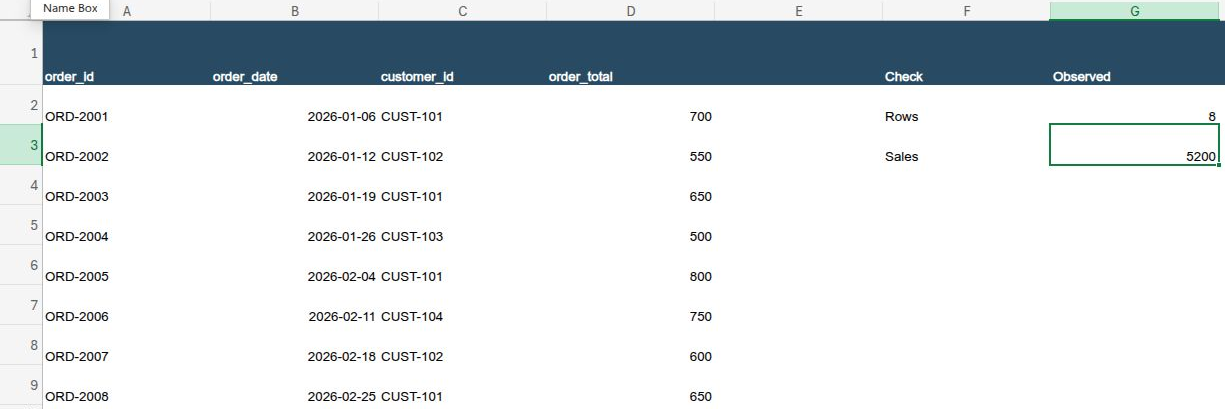
=VSTACK(Jan_Orders!A2:D5, Feb_Orders!A2:D5)
That fills A2:D9 with the eight orders. Three things can go wrong:
- A header row gets in. If you pass
Feb_Orders!A1:D5, February’s heading row lands in the middle of the data, and the result has 9 rows. The total still looks right, because SUM skips the text. - The columns are in a different order. If February’s columns are rearranged, VSTACK still puts February’s first column under order_id, so customer IDs can end up in the wrong column with no error.
- Something is in the way. In Excel, any value in the cells VSTACK needs makes it return #SPILL!. Clear those cells and the result appears.
So with Power Query, check that the header names match exactly, including capitalization. With VSTACK, check that the columns are in the same order and pass data rows only.
Do It in Two Steps: Append, Then Merge
For this example, append the months first, then merge the customer details once.
Start from the clean baseline.
Step 1: append. In Power Query, use Home > Append Queries > Append Queries as New and choose Jan_Orders and Feb_Orders. Rename the new query All_Orders. In a worksheet, use the VSTACK formula above. Either way, you should have 8 rows, 4 columns, and $5,200.
Step 2: merge. In Power Query, select All_Orders and use Home > Merge Queries > Merge Queries as New. Match All_Orders to Customer_Directory on customer_id, choose a Left Outer join (the left outer join keeps every order), then expand customer_name, region, and segment. Name the result Orders_With_Customers and load it to a sheet. In the worksheet, enter this in E2 and copy it down to E9:
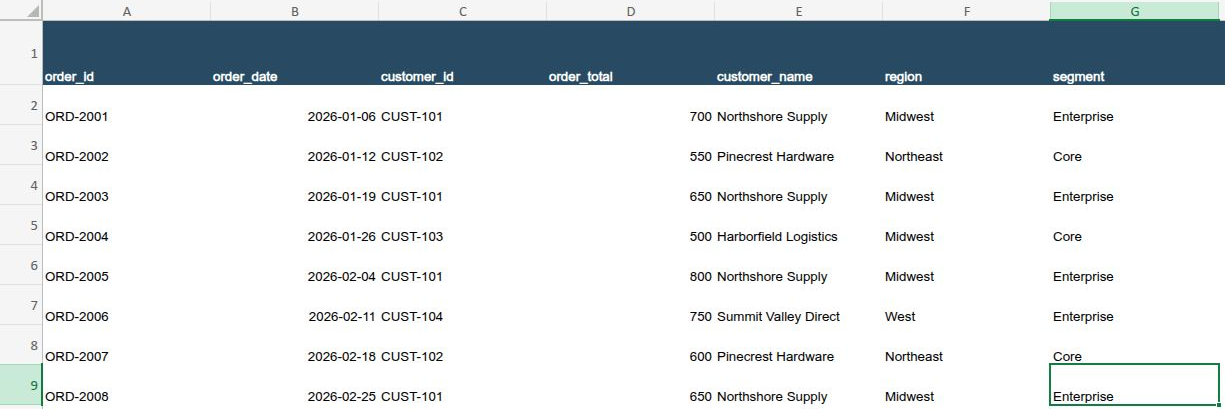
=XLOOKUP(C2, Customer_Directory!$A$2:$A$5, Customer_Directory!$B$2:$D$5, "UNMATCHED ID", 0)
Each formula returns three values, which spill into columns E, F, and G, so those columns must be empty. You should have 8 rows, 7 columns, and $5,200 unchanged. The 4 + 3 = 7 column count holds here because there’s one key column and you add all three of the directory’s other columns.
The two methods differ in one respect. If the directory listed a customer twice, a Power Query merge would duplicate that customer’s orders and inflate the total. XLOOKUP returns the first match and keeps the row count, which hides the duplicate instead. Neither tells you the directory is wrong, so check that each key appears only once before you rely on either.
Appending first means one merge step to maintain. Merge each month separately only when the months need different treatment. One example is a customer segment that applied only for part of the year.
Check the Combined Table Before You Use It
Before you combine anything, write down four expected numbers: rows, columns, rows with a numeric sales amount, and the sales total. Then measure the output. For the VSTACK result in Excel:
=ROWS(A2#)
=COLUMNS(A2#)
=COUNT(CHOOSECOLS(A2#,4))
=SUM(CHOOSECOLS(A2#,4))
COLUMNS(A2#) measures only the four-column VSTACK spill. The XLOOKUP results in E:G are separate spills, so for the merged worksheet table, add their three columns yourself: 4 + 3 = 7. For a Power Query output loaded as a table, use the same functions on the table and its order_total column. In Google Sheets, point them at the output range, such as A2:D9. Here’s how the example’s scenarios compare:
| Scenario | Rows | Columns | Numeric sales rows | Sales total | Verdict |
|---|---|---|---|---|---|
| Expected for the append | 8 | 4 | 8 | $5,200 | |
| Append Jan + Feb | 8 | 4 | 8 | $5,200 | Correct |
| Expected for the merge | 8 | 7 | 8 | $5,200 | |
| Merge orders + directory | 8 | 7 | 8 | $5,200 | Correct |
| Merge Jan + Feb on customer_id | 6 | 7 | 6 | $7,250 | Stop: rows and columns wrong |
| Append directory onto orders | 12 | 7 | 8 | $5,200 | Stop: rows wrong |
| Power Query append, header case differs | 8 | 5 | 4 | $2,400 | Stop: split column |
| VSTACK with a second header row | 9 | 4 | 8 | $5,200 | Stop: rows wrong |
Three of the four mistakes leave a total that looks reasonable or exactly right. That’s why you need all four numbers. Even when they all match, they show only that the table has the right shape. They don’t prove that every order got the right customer.
Frequently Asked Questions
My row count went up after a merge. Why?
The lookup table has a key that appears more than once, so each matching order was copied once per duplicate. Count each key with COUNTIF before you merge, and fix the lookup table first.
Some merged rows show null or UNMATCHED ID. What happened?
Those orders have a customer_id that isn’t in the directory, or one that looks the same but differs, such as a trailing space or a number stored as text. Fix the ID or the directory, then re-run the check.
What to Do Next
The decision rule depends on knowing what one row represents, which What Does One Row Represent in Your Sales Spreadsheet? covers. When combined totals still disagree with another system, Why Your Business Numbers Don’t Match Across Systems walks through the usual causes, and The Small Business Data Audit Checklist puts row counts and control totals into a routine.