
To build a monthly sales pivot table in Google Sheets, click inside your sales table, choose Insert > Pivot table, and set the data range to an open-ended reference that includes headers, such as Sales!A1:D. Add the date to Rows and sales to Values, summarized by SUM. Right-click a date in the pivot table and choose Create pivot date group > Year-Month. Filter out blank dates by condition, and check the Grand Total against =SUM(Sales!D2:D).
Keeping it right next month takes a few more steps, because monthly pivots break quietly: text dates won’t group, new rows fall outside a fixed range, a new month moves the Grand Total, or someone leaves a filter on.
The Example Data
These numbers are made up for the example. Put them on a tab named Sales. Each row is one completed order with a unique order_id. If your rows might be order lines instead, settle that first with What Does One Row Represent in Your Sales Spreadsheet?, or the pivot may count an order total twice.
| Row | A: order_id |
B: sale_date |
C: category |
D: net_sales |
|---|---|---|---|---|
| 1 | order_id | sale_date | category | net_sales |
| 2 | ORD-2001 | 2026-04-05 | Equipment | 1200.00 |
| 3 | ORD-2002 | 2026-04-14 | Supplies | 250.00 |
| 4 | ORD-2003 | 2026-04-27 | Maintenance | 400.00 |
| 5 | ORD-2004 | 2026-05-04 | Equipment | 1500.00 |
| 6 | ORD-2005 | 2026-05-18 | Supplies | 180.00 |
| 7 | ORD-2006 | 2026-05-22 | Maintenance | 420.00 |
April totals $1,850.00, May totals $2,100.00, and all six orders add up to $3,950.00. You’ll use those numbers to check each step.
Step 1: Check Every Source Row
A pivot table can only group real dates and sum real numbers. A text date won’t group by month. A text amount gets skipped by both SUM and the pivot, so comparing the two still balances. Check the rows themselves.
In Sales!E1, type row_check. In E2, enter this formula and fill it down to E500:
=IF(AND(A2="",B2="",C2="",D2=""),"",AND(A2<>"",COUNTIF(A$2:A,A2)=1,ISNUMBER(B2),ISDATE(B2),C2<>"",ISNUMBER(D2)))
A populated row returns TRUE only if it has an order ID that appears once, a numeric date, a category, and a numeric amount. Anything else returns FALSE, including a row with data but no order ID. Column E sits outside the pivot range, so leave it in place.
The check only covers rows that have the formula. A stray amount in row 501 would reach the pivot unchecked, so each time you add rows, make sure column E reaches every row with anything in columns A through D.
Add three screening cells, leaving column F free for date repairs:
| Row | Column J | Column K | Expect |
|---|---|---|---|
| 1 | Order IDs |
=COUNTA(A2:A) |
6 |
| 2 | Failed rows |
=COUNTIF(E2:E,FALSE) |
0 |
| 3 | Rows past check |
=COUNTA(A501:D) |
0 |
Check the six IDs against the example table one by one: ORD-2001 through ORD-2006, each present once. A count of six alone cannot spot one missing order replaced by another. For a real export, compare with an independent order list, record count, and sales subtotal from the source system for the same period and currency. These checks cannot detect an order absent from both lists.
If the log outgrows row 500, extend column E and change A501 in K3 to the first row below your last check. Investigate any FALSE result or formula error before building the pivot.
If a date fails, reformatting won’t fix it: Format > Number > Date changes how numbers display and doesn’t convert text. Confirm the date order your source system uses and check File > Settings > Locale. Never guess at 04/05/2026, which could be April 5 or May 4. Then convert in a temporary helper column, such as F:
- For text your locale recognizes, such as ISO
2026-04-05, use=DATEVALUE(TRIM(B2)). DATEVALUE returns a date serial number, and the formats it accepts depend on locale. - For a confirmed
MM/DD/YYYYstring, build the date from its parts:=DATE(VALUE(RIGHT(TRIM(B2),4)),VALUE(LEFT(TRIM(B2),2)),VALUE(MID(TRIM(B2),4,2))). ForDD/MM/YYYY, swap theLEFTandMIDpieces.
That formula reads fixed positions, so every month and day needs two digits (04/05/2026, not 4/5/2026). It also won’t flag an out-of-bounds month: if DATE reads 13/05/2026 as MM/DD/YYYY, it silently rolls the 13th month into January 2027. Use it only on real calendar dates you’ve checked against the source system.
The helper returns plain serial numbers, such as 46117 for April 5, 2026. Check that each is the date you intended, for example with =TEXT(F2,"yyyy-mm-dd"). Then copy the helper, use Paste special > Values only over the matching cells in column B, apply Format > Number > Date to column B, and clear column F. Column E should now show TRUE.
Step 2: Insert the Pivot Table with an Open-Ended Range
Click inside the data and choose Insert > Pivot table. Replace the suggested range with Sales!A1:D. This keeps the four source columns and excludes the validation helper in E.
A fixed range stops at row 7 and misses next month’s orders. Keep Row 1 in the open-ended range: Google’s pivot table help says each column needs a header, and Sheets reads the first row of the range as field names. Start at Sales!A2:D and Sheets would read the ORD-2001 row as field names, so that order’s $1,200.00 would drop out of the totals.
If your data is a Sheets table, still enter the worksheet range. Google’s table reference documentation says pivot tables don’t support table references.
Choose New sheet, click Create, and rename the tab Monthly_Pivot.
In this test, Sheets displayed that range as Sales!A1:D1000, matching the source sheet’s existing 1,000 rows. Appended orders within those rows were included. Recheck the range if you add rows beyond the sheet’s current size.
Step 3: Add Dates to Rows and Sales to Values
In the Pivot table editor, click Add next to Rows and choose sale_date. Click Add next to Values and choose net_sales. Confirm that Summarize by says SUM.
After grouping by month, COUNTA or COUNT would show 3, 3, and 6. Those are valid order counts, but the question is revenue: $1,850.00, $2,100.00, and $3,950.00.
Step 4: Group the Dates by Year-Month
The pivot now lists each date separately. Right-click a populated date in the pivot grid itself, choose Create pivot date group, and click Year-Month. In this test, the first date was in A3, because A2 was the blank group. Google’s customization help covers this menu.
Skip plain Month, which groups by month name alone. If the log also held a $900.00 order from 2025-04-10, Month would merge both Aprils into one $2,750.00 row, while Year-Month keeps $900.00 and $1,850.00 apart. To try it, add that order to a copy (File > Make a copy), then close the copy and continue in your original six-order file.
Step 5: Filter Out Blank Rows by Condition
Because Sales!A1:D includes empty rows, add a filter to exclude blank dates. Click Add next to Filters and choose sale_date. Open the Showing all items dropdown, expand Filter by condition, select Is not empty, and click OK. The editor then displays Cell is not empty.
Don’t uncheck the blank item under Filter by values instead. Google notes that a value filter must be updated before new source data shows. A condition filter admits new dates as they arrive.
The finished pivot should show April ($1,850.00) in row 2, May ($2,100.00) in row 3, and the Grand Total ($3,950.00) in row 4.
Optional: add category under Columns to split each month by Equipment, Maintenance, and Supplies. With three categories, the pivot fills columns A through E. Remove category from Columns before you continue, so your layout matches the row positions in the steps below.
Step 6: Add a Reconciliation Check in G1:H4
The pivot grid doesn’t warn you when a filter hides data. If someone unchecks Maintenance and closes the editor, the Grand Total drops to $3,130.00 with no explanation. Add this check on Monthly_Pivot:
| Row | Column G | Column H |
|---|---|---|
| 1 | Reconciliation Check |
Control Value |
| 2 | Raw Sheet Total |
=SUM(Sales!D2:D) |
| 3 | Pivot Grand Total |
=GETPIVOTDATA("SUM of net_sales",$A$1) |
| 4 | Reconciliation Status |
=IF(ROUND(H2-H3,2)=0,"RECONCILED","MISMATCH: "&TEXT(H2-H3,"$#,##0.00")) |
H2 and H3 should both show $3,950.00, and H4 should say RECONCILED. With Maintenance filtered out, H4 would read MISMATCH: $820.00.
GETPIVOTDATA returns the Grand Total of the pivot table anchored at A1, wherever that total sits. Use the displayed value heading as its first argument, especially if you later add more value fields.
This check can’t see a text amount that both totals skip, which is why the Step 1 checks stay in place.
Step 7: Test It with a Same-Month Row and a New-Month Row
On Sales, add two synthetic orders, one at a time:
| Row | order_id |
sale_date |
category |
net_sales |
|---|---|---|---|---|
| 8 | ORD-2007 | 2026-05-28 | Equipment | 650.00 |
| 9 | ORD-2008 | 2026-06-03 | Supplies | 500.00 |
After each addition, verify the actual ID against the table: first ORD-2007, then ORD-2008, with the original six still present once each. Confirm its row_check is TRUE, Failed rows and Rows past check stay at 0, and Order IDs reads 7, then 8. The pivot should show:
| Month | Six orders | After row 8 | After row 9 |
|---|---|---|---|
| April 2026 | $1,850.00 | $1,850.00 | $1,850.00 |
| May 2026 | $2,100.00 | $2,750.00 | $2,750.00 |
| June 2026 | — | — | $500.00 |
| Grand Total | $3,950.00 | $4,600.00 | $5,100.00 |
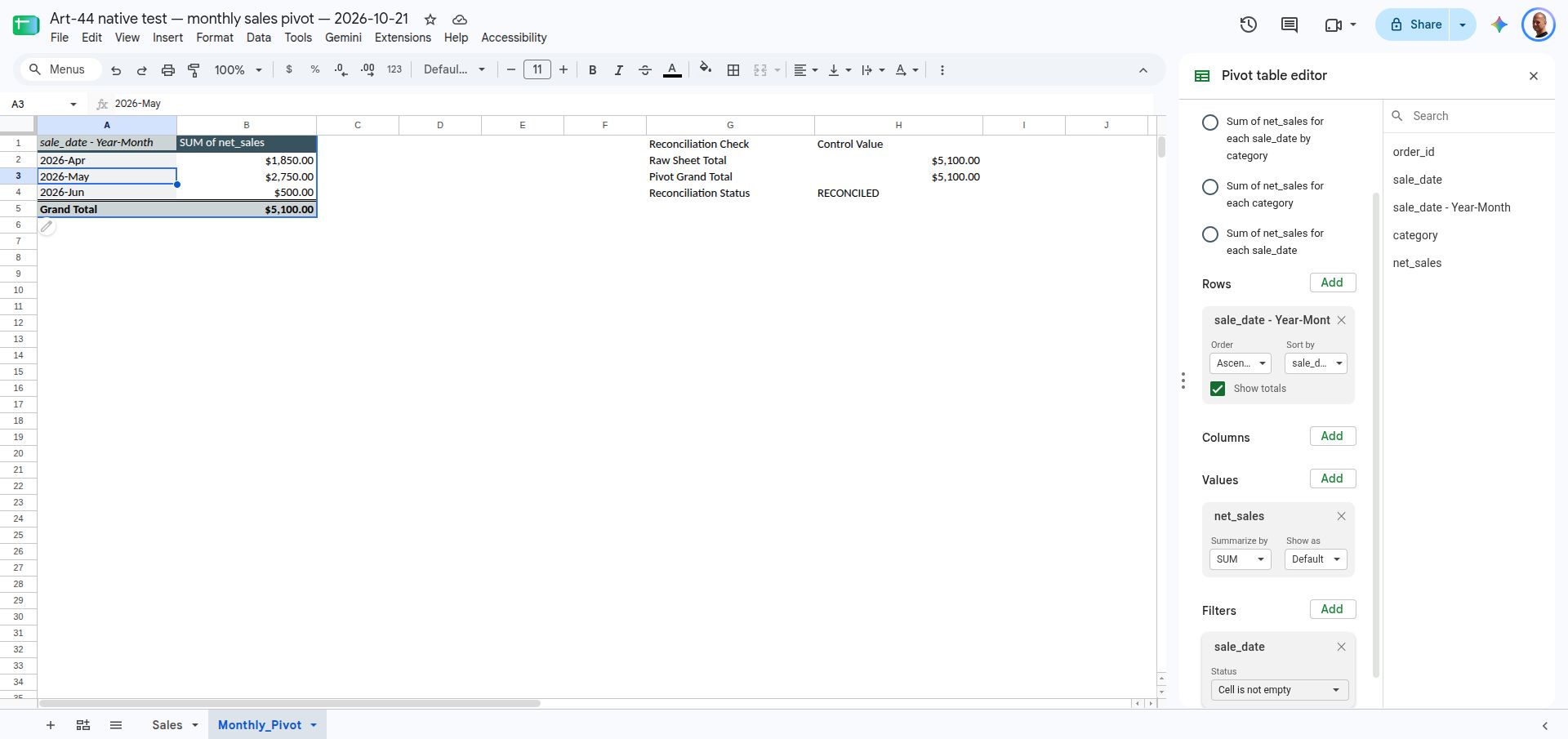
Row 9 adds a month, so expect June to take row 4 and the Grand Total to move to row 5. A plain =B4 link would now point at June’s $500.00, while H3 should still return $5,100.00 and H4 should still say RECONCILED. A pivot left on Sales!A1:D7 would stay at $3,950.00, and H4 would flag MISMATCH: $650.00 after row 8 and MISMATCH: $1,150.00 after row 9.
Troubleshooting
| Symptom | Likely cause | Fix |
|---|---|---|
| Create pivot date group is missing | You right-clicked the editor, or some dates are text | Right-click a date in the pivot grid. If that fails, look for FALSE in column E and convert as in Step 1. |
| New rows don’t appear | Fixed range, or a Filter by values list | Use Sales!A1:D and Filter by condition > Is not empty. |
| Two Aprils in one row | Grouped by Month | Choose Ungroup pivot items, then group by Year-Month. |
H4 says RECONCILED, but a sale is missing |
Blank or text amount skipped by both totals, or an order never entered | Check Sales!K2, column E, and the IDs and subtotal against the independent source. |
FAQ
Does the pivot table update automatically when I add rows?
Yes, for rows inside its data range that pass its filters. The May and June additions in this example updated without a manual refresh. Check the displayed source range again when your sheet grows.
How do I see which orders make up a monthly total?
Double-click the value cell. Sheets opens a new tab listing the source rows behind it.
What to Do Next
Once the monthly totals reconcile, they’re ready for regular reporting. How to build a monthly KPI scorecard covers which metrics to put next to revenue and how to keep their definitions consistent.